


Chiropractic GA4 Setup: Track Calls, Forms, and Bookings
 by Gerek Allen ~ Last Updated: December 4th, 2025 ~ 7 Min Read
by Gerek Allen
~ Last Updated: December 4th, 2025 ~
~ 7 Min Read ~
You've probably heard about Google Analytics 4, or GA4. Maybe you received an email from Google, or your old Universal Analytics property just stopped working one day. Now you're stuck wondering what to do with this new analytics platform, which can be frustrating when you just want to know if your website is helping your practice grow.
This comprehensive guide provides a clear path for your chiropractic GA4 setup, so you can stop guessing and start knowing which marketing efforts bring new patients through your door.
You're a chiropractor, not a data scientist, and you need a straightforward way to see if your website is working. This isn't about creating complex, custom reports right away. It's about a simple, effective chiropractic GA4 setup that answers basic questions about your business objectives.
Let's walk through how to get the crucial data you actually need. We'll focus on tracking appointments, contact forms, and phone calls. These are the user interactions that directly contribute to the growth of your practice.
Why Your Practice Needs to Get GA4 Right

You might be thinking, "Do I really need this?" The answer is a clear yes.
Without proper data collection, you are essentially marketing with a blindfold on. You spend money and time on your chiropractor website, but you have no idea what is truly effective.
Google's old system, Universal Analytics, was a familiar tool for many. It was comfortable, but it wasn't built for how people use the internet today across different devices. GA4 is different because it's built around actions, or "events," which is perfect for a service business like yours.
Instead of just counting page visits, GA4 can track when someone performs an important user action. It can track when they click to book, fill out a form, or tap your phone number on a mobile app or website. This information tells you exactly how valuable your website is by connecting your online efforts directly to real-world patient growth and improving your marketing strategies.
First Steps: Creating Your GA4 Property
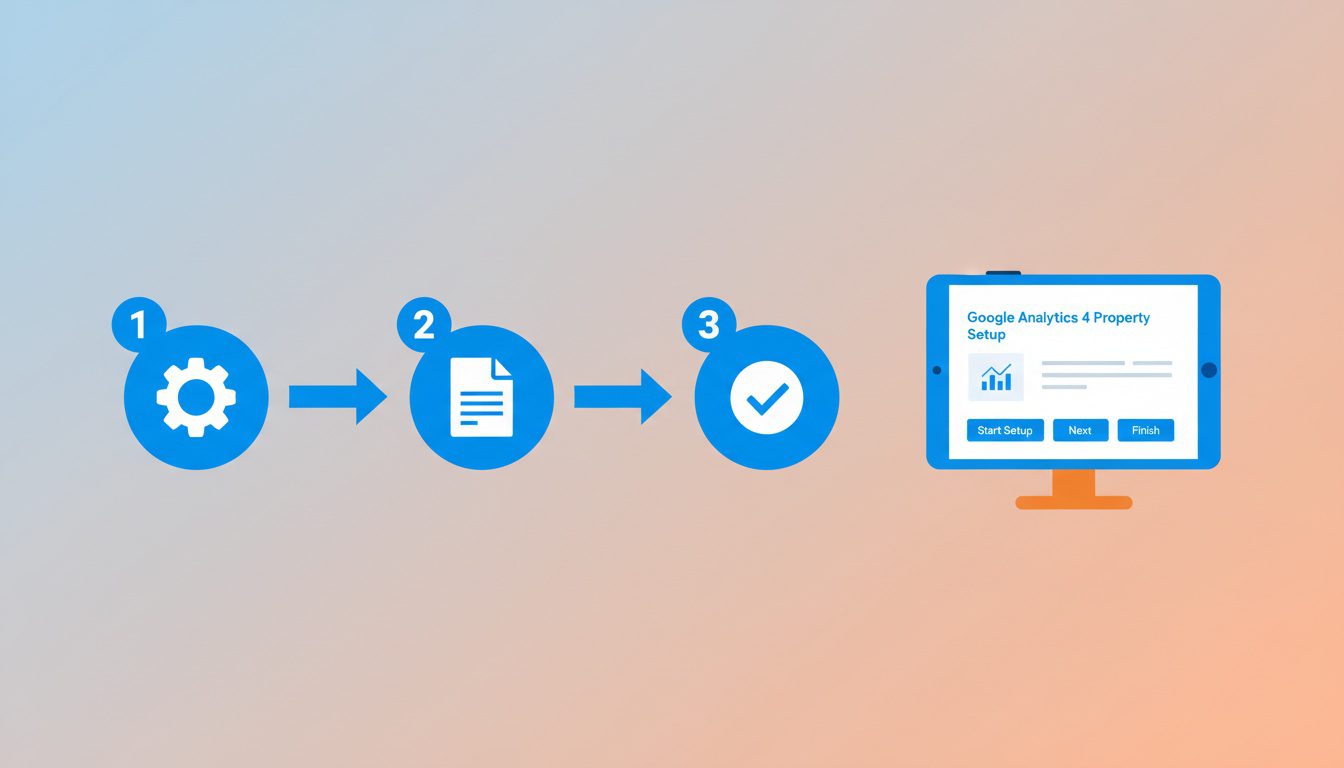
Before you can track anything, you need a place for the data to go. This is your GA4 analytics property. If you already have one, you can skip this section, but if you're starting from scratch or setting up a new analytics account, here's what to do.
First, you'll need to go to the Google Analytics website. If you have a Google account for your business, use that to sign in.
Once you are in, the setup process will guide you through creating your new Google Analytics account and property.
Here are the simple steps to create the property:
- Click 'admin' in the bottom-left corner; it looks like a small gear icon.
- In the Property column, click the Create Property button to start your property setup.
- You'll then fill in your practice name, reporting time zone, and the currency you use.
- Google will ask a few questions about your business. You can select Health as your industry category and choose your business size.
- The final and most important step is setting up a data stream. A data stream is simply the source of your data, and since you're tracking your website, select 'web'.
- Enter your website's address and give the stream a name, like "My Chiro Website," for easy identification within your property settings. Make sure Enhanced measurement is turned on.
- Google will then give you a Measurement ID in the web stream details. It will look something like G-XXXXXXXXXX; copy this and keep it handy. This is how you connect your website to your new GA4 property to start measuring traffic.
During the property setting configuration, you'll see options for data retention. The default is two months, but you should change this to 14 months. This allows you to compare your performance year-over-year, which is vital for understanding growth.
You may also see an option to enable Google Signals. Turning this on can give you more demographic data and support cross-device reporting by using signed-in Google data. This provides a more complete picture of your user's journey.

NEED MORE CLIENTS?
Free conversion-focused analysis uncovers the 3 biggest problems killing your bookings — we'll walk you through your results personally

Installing the GA4 Tag on Your Chiropractic Website
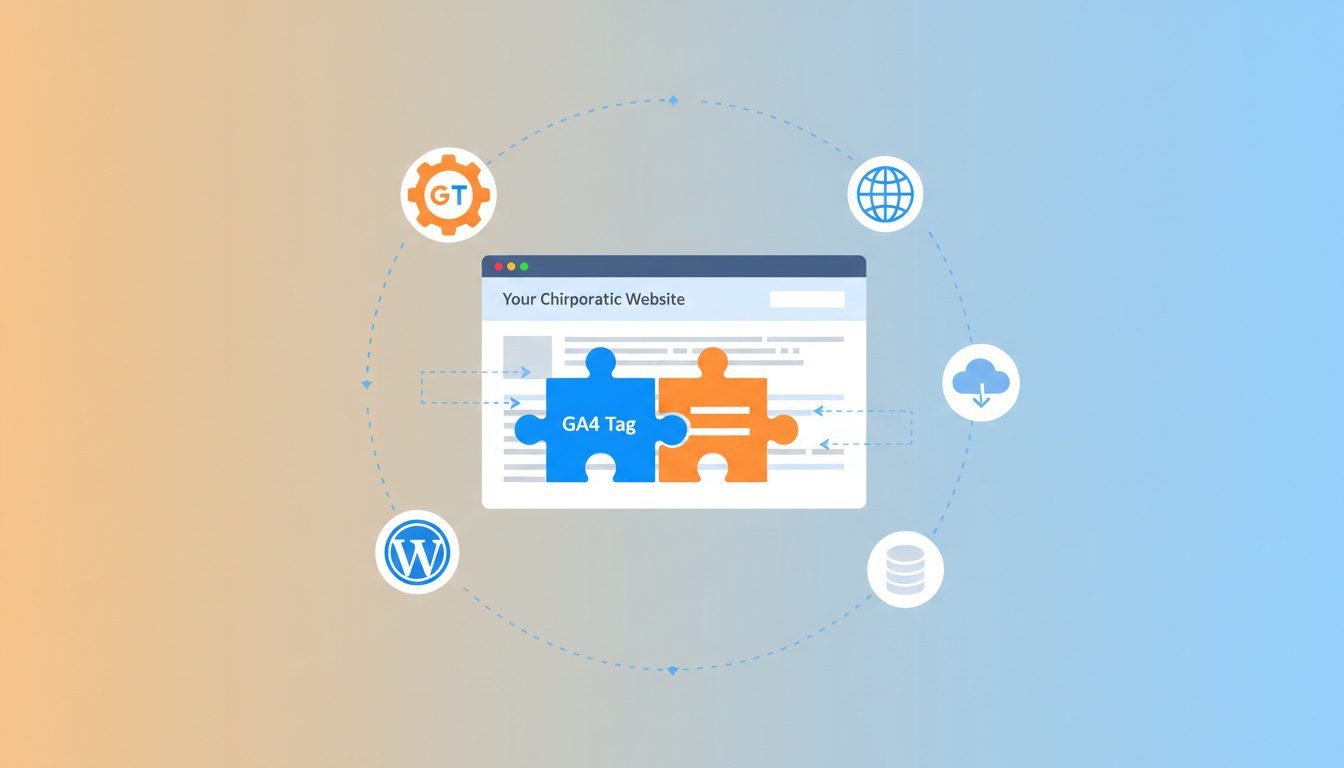
Now you have a GA4 property and a Measurement ID. The next step is installing Google Tag on your website. This small piece of code is what sends information from your site back to Google Analytics.
You have a couple of easy options. Many website builder platforms, like WordPress, have plugins that make this very simple. You can search for a GA4 plugin, install it, and then just paste your Measurement ID into its tag settings. This is often the quickest way to get started with data collection.
Another powerful method is using Google Tag Manager (GTM). Think of Tag Manager as a toolbox that holds all your tracking codes in a single tag set. It takes a little more setup initially but gives you much more control later without having to mess with your website's code. This is especially useful if you also run Google Ads and need to manage an ad account tag.
If you use Google Tag Manager, you'll create a new GA4 Configuration tag. Simply paste your Measurement ID into the tag and set it to fire on all pages. Once you publish the changes in GTM, your website will be officially connected to GA4, and you can configure tag settings from one central location.
Configuring Your GA4 Property Settings
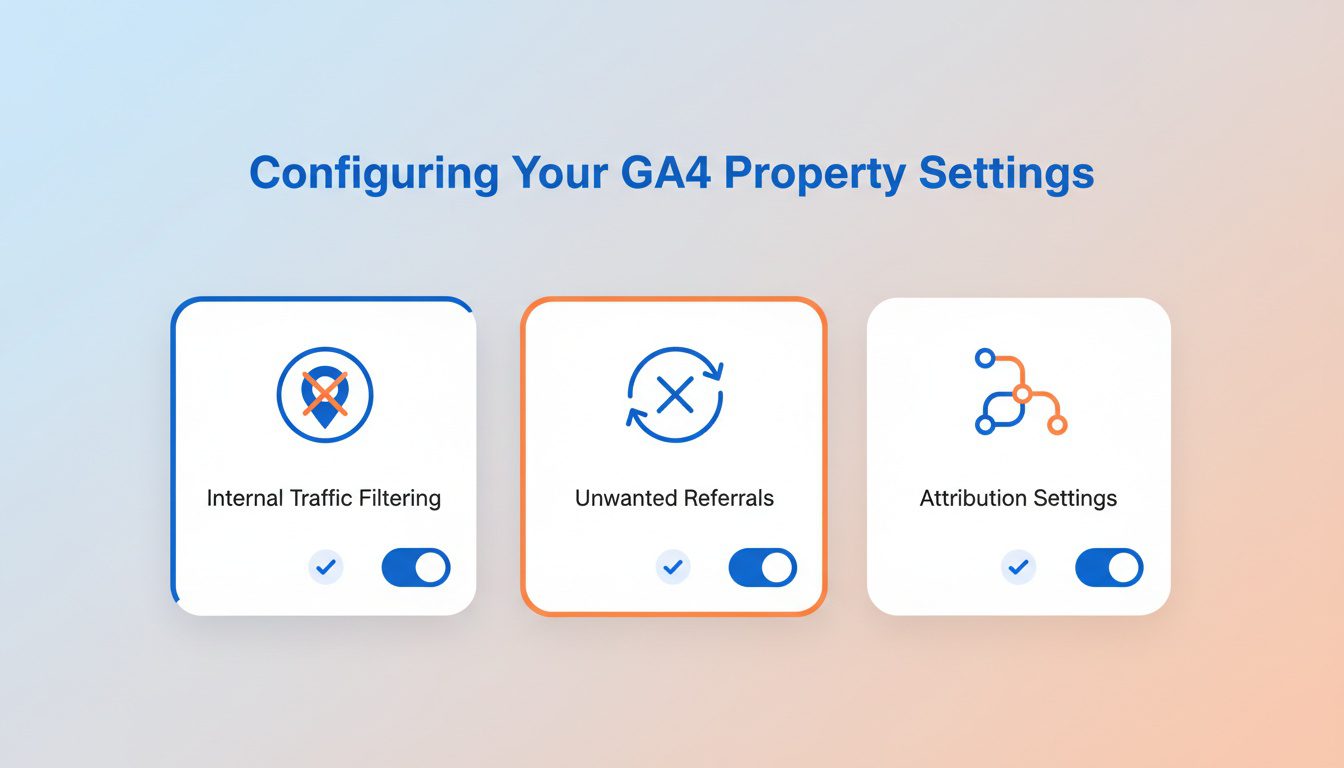
With your tag installed, there are a few crucial property settings to adjust before tracking conversions. These configurations help you get clean, accurate data. Pay attention to these steps to avoid common data problems later on.
Define Internal Traffic
Your team and you visit your website often, but these visits aren't from potential patients. To keep your data accurate, you need to filter out this internal traffic. GA4 makes it easy to define internal traffic based on your office's IP address.
In your property settings, navigate to Data Streams and click on your web stream. Under Google Tag, click Configure tag settings. Here you can find the option to define internal traffic rules by adding the IP address of your office network.
Once you define internal traffic, you must create a data filter to exclude it. Go to Admin, then Data Settings, and then Data Filters. Here you can activate the Internal Traffic filter, which will prevent office activity from skewing your reports.
List Unwanted Referrals
Sometimes, traffic can be misattributed. For example, if a patient books an appointment and is sent to a third-party payment site and then back to your website, that payment site might show up as the source of the conversion. This is an unwanted referral.
To fix this, you need to list unwanted referrals. Go to the same Configure tag settings area mentioned before. You will find an option to add domains you want to exclude, like your patient portal login page or payment processor, so that the original traffic source gets proper credit.
Adjust Attribution Settings
Attribution settings determine how credit for conversions is given to different touchpoints in the user journey. GA4 defaults to a data-driven attribution model, which is generally the best choice. This model uses your account's data to determine which channels were most influential.
It is a good idea to check your attribution settings to understand how they work. This is found under the Admin panel in the Property column. For most chiropractic practices, sticking with the default data-driven attribution is the right move for an accurate view of what drives results.
Your Core Chiropractic GA4 Setup: Tracking What Matters

Okay, your website is now sending basic data to GA4, and your settings are configured. Your analytics property can see who is visiting and what pages they look at. Now, we need to track the user actions that actually grow your practice by creating custom events.
Tracking Online Appointment Bookings
This is probably the most important thing you want to track. Seeing how many people book an appointment online is solid proof that your website is working. Most chiropractic booking systems redirect a user to a "thank you" or "confirmation" page after they book.
This page is our secret weapon because only people who have successfully booked an appointment see this page. So, if we tell GA4 to count every time someone visits this specific page, we're effectively counting new appointments.
We can create custom events to track this. Here is how you do that inside GA4:
- Go to Admin, then find Events in the Property column.
- Click Create event and then click Create.
- Give your new event a name. Let's call it appointment_booked. A clear name helps you remember what it is.
- Now we need to tell Google when to count this event. Under Matching conditions, you'll set a rule where the Parameter is page_location.
- For the Operator, choose contains.
- For the Value, paste in part of the URL of your booking confirmation page. For example, if the page is yourwebsite.com/thank-you-booking, you could just use /thank-you-booking.
- Click Create to save it.
Now, GA4 will generate an event called appointment_booked every time someone lands on your confirmation page. The final step is to tell GA4 that this event is a conversion, which is just a very important event.
To do this, go to Admin and click Conversions. Click New conversion event and type in the exact name of the event you just created: appointment_booked.
Now it will show up in all your key reports as a conversion, and you have successfully tracked an online booking.
Capturing New Patient Form Submissions
What about your general contact form or ask a question form? These are also valuable leads. You can track these in the same way you tracked appointment bookings.
Most contact forms also lead to a simple confirmation page. This might be something like yourwebsite.com/contact-success or yourwebsite.com/message-sent. Find the URL of that page.
Then, you just repeat the process. Go to Admin, then Events, and create another new event. You could name this one contact_form_submission, with a matching condition of page_location contains /message-sent or whatever your confirmation URL is. Don't forget to mark this new event as a conversion, too.
By creating a separate event for each type of form, you can see exactly what users are interested in. This helps you understand your website visitors much better.
How to Track Phone Calls from Your Website
Tracking phone calls can feel tricky. A person clicks a number on their phone, and the action happens offline. But we can still track the click that started the call, which works very well for mobile visitors.
Most websites make their phone numbers clickable with a special link that starts with tel:. When a user on a smartphone clicks a link like tel:+15551234567, it opens their phone's dialer. We can track clicks on these links.
The good news is that GA4's Enhanced Measurement often tracks this automatically as an outbound click. However, it is a good idea to create a specific event just for phone calls to be sure. This makes your reporting cleaner.
You can create another event in GA4 for this. The process is slightly different. You would set the custom event condition where the parameter link_url contains tel:. Give this new event a clear name, like phone_call_click.
Again, go to the Conversions section and mark phone_call_click as a conversion. Now you are tracking how many people start a call from your website. This tracks the click, not the actual call itself, but for most practices, it's a very good indicator of intent.
| Appointment Booking | appointment_booked | Create an event for confirmation page view. |
| Contact Form Fill | contact_form_submission | Create an event for the thank you page view. |
| Phone Number Click | phone_call_click | Create an event for outbound clicks containing "tel:". |
Reading the Data: What Reports Should You Look At?

You have done the hard work of setting everything up, so now it is time to see the results. Your data will take 24-48 hours to start appearing in your reports. After that, you can begin to see how users are interacting with your site.
GA4 can seem like it has a hundred different reports. But you only need to focus on a few to get the answers you need. On the left-hand menu in GA4, click on Reports.
The first place to look is the Acquisition reports. Go to Reports > Acquisition > Traffic acquisition. This report tells you where your website visitors are coming from, showing channels like Organic Search (from a Google search), Direct, and Social.
This is powerful because the report also shows your conversions. You can see that Organic Search brought you 15 new appointment bookings this month. This shows you that your search engine optimization efforts are paying off.
For more details, you can link your Google Search Console account to GA4.
Next, you will want to look at your conversions directly. Go to Reports > Engagement > Conversions. This report lists all the conversion events you created and shows a simple count of how many times each has happened. It's a great, high-level look at your website's performance.
Finally, you can see which specific pages on your website are leading to new patients. Go to Reports > Engagement > Pages and screens. This shows a list of your most popular pages.
By adding Conversions as a column to this report, you can see which pages are actually turning visitors into leads, which helps you know what content is working and what you should create more of in the future.
Frequently Asked Questions About Chiropractic GA4 Setup
What is GA4, and why do chiropractors need it instead of the old Google Analytics?
GA4 (Google Analytics 4) is Google's current analytics platform that replaced Universal Analytics in July 2023. Unlike the old version that tracked page views, GA4 focuses on events and user interactions—making it far better for tracking what chiropractors actually care about: phone calls, form submissions, appointment bookings, and patient journey pathways. GA4 provides cross-device tracking (someone researching on mobile, booking on desktop), privacy-compliant data collection meeting current regulations, AI-powered insights predicting patient behavior, and integration with Google Ads for better campaign optimization. If you're still using old Google Analytics or haven't set up any tracking, you're flying blind—unable to see which marketing efforts generate actual appointments versus just website traffic.
What are the most important events chiropractors should track in GA4?
Essential events for chiropractic practices include: Phone calls (clicks on phone numbers, call tracking integration), Form submissions (contact forms, appointment request forms, new patient intake), Appointment bookings (online scheduling completions), Button clicks ("Book Now," "Call Us," "Get Directions"), Page scrolls (how far people read on service pages), Video engagement (views of treatment explanation videos), File downloads (intake forms, insurance information PDFs), Outbound clicks (clicks to insurance verification sites, third-party booking platforms), and Engagement time (how long people actively interact with your site). Start with the conversion events that directly lead to appointments—calls, forms, and bookings—then expand to engagement metrics that help optimize content and user experience.
How do I track phone calls as conversions in GA4 without expensive call tracking software?
Implement basic call tracking through GA4 event tracking for phone number clicks. For websites, add event tracking code to your phone number links that fires whenever someone clicks to call (works for mobile users). This tracks click-to-call intent, though it doesn't capture calls from people who manually dial after seeing your number. For more comprehensive tracking, integrate affordable call tracking services like CallRail ($45+/month), CallTrackingMetrics, or WhatConverts that provide: unique tracking numbers for different marketing sources, call recording and transcription, automatic GA4 integration sending call data as conversion events, and attribution showing which campaigns drive calls. Even basic click-tracking is better than nothing—you'll see which pages drive call intent and can optimize accordingly. Set up phone call clicks as key conversion events in GA4 to measure them alongside form submissions.
I'm not technical—can I set up GA4 myself or do I need to hire someone?
Basic GA4 setup is manageable for non-technical users, but comprehensive tracking with conversions requires technical knowledge. You can handle: creating a GA4 property in your Google Analytics account, installing the basic GA4 tracking code (most website builders like WordPress, Wix, Squarespace have plugins or built-in integration), setting up basic goals through GA4's interface, and connecting Google Search Console. You'll likely need help with: implementing custom event tracking for form submissions and button clicks (requires JavaScript or Google Tag Manager knowledge), setting up enhanced e-commerce tracking, configuring cross-domain tracking, integrating call tracking platforms, creating custom conversion funnels, and troubleshooting data discrepancies. Consider hiring a GA4 specialist for initial setup ($500-1,500) to ensure proper implementation, then manage ongoing monitoring yourself. Incorrect setup means unreliable data—better to invest in proper implementation than make costly decisions based on bad data.
Conclusion
Jumping into GA4 can feel like a big chore. But by focusing on what truly matters to your practice, it becomes much more manageable. You don't need to know every little detail about the analytics platform; you just need to know if your website is bringing you new patients.
By following these steps, you've created a powerful tool to connect your marketing activities to actual results. You can now confidently answer questions about your website's performance and make smarter decisions to grow your practice.
Free Website Conversion Analysis — Get a personal walkthrough showing the 3 biggest problems costing you clients (plus instant case study).

Gerek Allen
Co-Owner iTech Valet
Entrepreneur, patriot, CrossFit junkie, IPA enthusiast, loves to travel to tropical destinations, and knows way too many movie quotes.


About iTech Valet
iTech Valet specializes in web design and content marketing for online entrepreneurs who want to share their expertise.
Services Include:
- Web Design
- Graphic Design
- Sales Copy
- Funnel Building
- Authority Sites
- Membership Sites
- Course Creation
- Email Systems
- Content Marketing
- Competitive Analysis
- Tech Integrations
- Strategic Planning
NEED MORE CLIENTS?
Free conversion-focused analysis uncovers the 3 biggest problems killing your bookings — we'll walk you through your results personally

621 Enterprises, Inc. | Copyright 2022 | All rights reserved