


What Is the Best HIPAA-Compliant Cloud Storage for Chiropractors in 2026?
 by Gerek Allen ~ Last Updated: Dec 11, 2025 ~ 11 Min Read
by Gerek Allen
~ Last Updated: Dec 11, 2025 ~
~ 11 Min Read ~
The best HIPAA-compliant cloud storage for most chiropractors is Sync.com. It's got zero-knowledge encryption, affordable pricing starting at $20/month for solo docs, and a straightforward Business Associate Agreement process.
But here's what most chiropractors don't realize...
Simply choosing a "HIPAA-compliant" provider doesn't automatically make YOU compliant. You need a signed BAA in place before storing a single patient file. You need proper access controls configured. And you need your team trained on handling protected health information.
Sound like a lot? It's really not once you understand the pieces.
Here's the reality check: In 2024, healthcare organizations reported 725 data breaches affecting over 275 million patient records. The average cost of a healthcare breach hit $10.22 million in 2026—and that includes small practices just like yours.
This guide breaks down exactly which cloud storage options work for chiropractic practices, what they'll actually cost you, how to set them up right, and how to avoid the compliance mistakes that get practices fined.
Whether you're solo or running multiple locations, you'll walk away knowing exactly which solution fits.
Let's dig in.
Understanding HIPAA Cloud Storage Requirements

Before you compare providers, you gotta understand what HIPAA actually requires from cloud storage.
This isn't just checkbox compliance—it's the foundation that keeps your practice protected.
What Makes Cloud Storage HIPAA Compliant
Here's the thing most docs don't realize: HIPAA doesn't certify or approve specific software.
There's no official "HIPAA certified" stamp a provider can slap on their product. Kinda frustrating, right?
Instead, HIPAA compliance depends on three factors working together:
- The provider's security capabilities - Encryption, access controls, audit logging, and proper safeguards must be in place
- A signed Business Associate Agreement (BAA) - This legal contract makes the provider responsible for protecting your patient data
- Your configuration and usage - Even the most secure platform becomes non-compliant if you don't set it up correctly
Think of it like a three-legged stool. Remove any leg and the whole thing falls over.
The HIPAA Security Rule specifically requires administrative, physical, and technical safeguards for electronic protected health information (ePHI). For cloud storage, that means encryption, access controls, activity logging, and breach notification procedures.
The Business Associate Agreement Explained
Let's keep it real here.
A BAA is non-negotiable. Period.
Before you upload a single patient file to any cloud service, you must have a signed BAA in place. This agreement establishes that the cloud provider is your "business associate" under HIPAA and legally binds them to:
- Implement appropriate safeguards to protect PHI
- Report security incidents and breaches to you
- Ensure their subcontractors also comply with HIPAA
- Return or destroy PHI when the relationship ends
- Allow HHS to audit their compliance if needed
Without a BAA? Even the most secure storage platform becomes a HIPAA violation the moment you store patient data on it.
The good news: Major providers like Google, Microsoft, Dropbox, and Sync.com all offer BAAs for their business plans.
The bad news: Not all plans qualify, and you need to actively sign the agreement—it's not automatic with most providers.
Encryption Standards You Actually Need
HIPAA requires encryption for ePHI both "at rest" (stored on servers) and "in transit" (moving between your computer and the cloud).
The industry standard is:
- AES-256 encryption at rest - Same encryption standard used by governments and banks
- TLS/SSL encryption in transit - Protects data while it's being uploaded or downloaded
Most major cloud providers meet these standards. But here's a critical difference worth understanding...
Standard encryption means the provider holds the encryption keys. They can technically access your data (though reputable providers won't without legal requirement).
Zero-knowledge encryption means you hold the encryption keys. Even the provider cannot access your data. Sync.com and Tresorit offer this level of protection.
For most chiropractic practices, standard AES-256 encryption with a signed BAA meets HIPAA requirements.
Zero-knowledge encryption? That's the extra layer if you want maximum security.
Comparing the Best HIPAA Cloud Storage Options
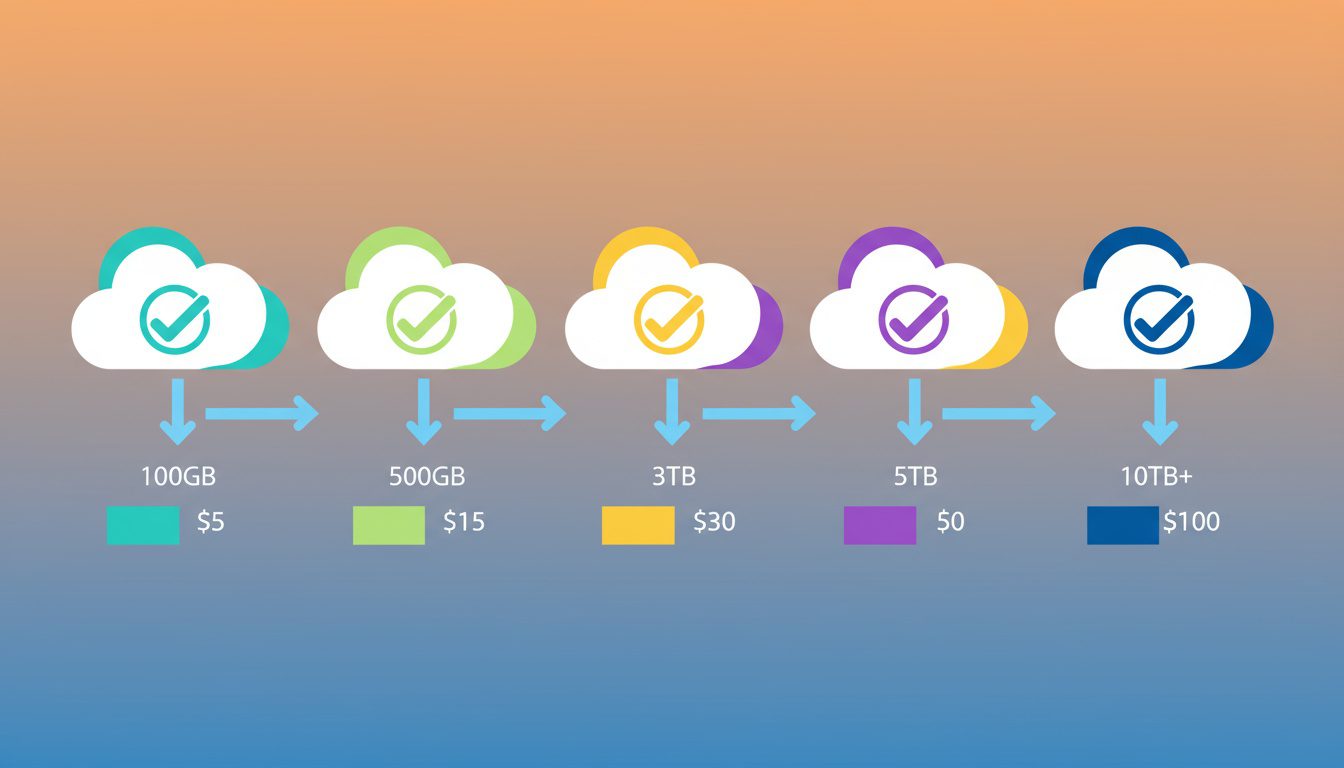
Alright, let's cut through the marketing and compare what actually matters: security, pricing, ease of use, and how well each platform works for a typical chiropractic practice.
Sync.com: Best for Solo Practitioners and Small Practices
Sync.com consistently ranks as the top HIPAA-compliant cloud storage for small healthcare practices.
And honestly? For good reason.
What makes it stand out:
- Zero-knowledge encryption - Even Sync.com employees can't access your files. This is the highest level of data protection available.
- Affordable HIPAA plans - Solo Professional at $20/month includes HIPAA compliance and 6TB storage
- Simple BAA process - Request a BAA after purchasing an eligible plan
- No minimum users - Unlike Box or Dropbox, you don't need 3+ users to get business features
Pricing breakdown:
| Pro Solo Professional | $20/user | 6TB | Yes |
| Teams Standard | $6/user | 1TB | Yes |
| Teams Unlimited | $15/user | Unlimited | Yes |
Best for: Solo chiropractors and small practices (1-5 users) who want maximum security without enterprise complexity.
The downside? Limited third-party integrations compared to Google or Microsoft. No built-in productivity tools—it's purely storage and file sharing.
If you need help choosing other practice management tools, we've got a full breakdown of CRM options.
Google Workspace: Best for Teams Already Using Google
If your practice already lives in Gmail, Google Drive, and Google Calendar... Google Workspace makes a lot of sense.
What makes it stand out:
- Familiar interface - Your team already knows how to use it
- Integrated productivity - Docs, Sheets, Meet, and Gmail all covered under the same BAA
- Generous storage - 2TB pooled per user on Business Standard
- Video conferencing included - Google Meet supports HIPAA-compliant telehealth
Now... this part matters.
You MUST sign the BAA through Admin console before using any Google service for patient data. Free personal accounts are NOT HIPAA compliant. Not even close.
Pricing breakdown:
| Business Starter | $7-8.40/user | 30GB pooled | No |
| Business Standard | $14-16.80/user | 2TB pooled | Yes (with BAA) |
| Business Plus | $22-26.40/user | 5TB pooled | Yes (with BAA) |
| Enterprise | Custom | 5TB+ | Yes (with BAA) |
Best for: Practices with 2+ staff members who already use Google products and want integrated email, storage, and video conferencing.
The downside? No password protection for shared links. Google's had privacy controversies in the past, which some healthcare providers find concerning. And Business Starter? Not HIPAA eligible.
Microsoft OneDrive/365: Best for Windows-Heavy Practices
Running Windows computers and Microsoft Office? Microsoft 365 with OneDrive provides seamless HIPAA-compliant storage.
What makes it stand out:
- BAA included by default - Unlike Google, Microsoft's BAA is automatically part of the Data Protection Addendum for eligible plans
- Deep Windows integration - OneDrive feels native on Windows PCs
- Familiar Office tools - Word, Excel, Outlook all included
- Advanced security options - Higher-tier plans include ransomware detection and data loss prevention
Pricing breakdown:
| Microsoft 365 Business Basic | $6/user | 1TB | Yes |
| Microsoft 365 Business Standard | $12.50/user | 1TB | Yes |
| Microsoft 365 Business Premium | $22/user | 1TB | Yes |
Best for: Practices using Windows computers and Microsoft Office who want integrated storage without switching ecosystems.
The downside? Storage is limited to 1TB per user across all plans. Google offers more at similar price points. And Microsoft's admin interface? Can be confusing for non-technical users.
Dropbox Business: Best for Simple File Sharing
Dropbox pioneered consumer cloud storage and offers HIPAA-compliant business plans with excellent file-sharing features.
What makes it stand out:
- Best-in-class sync - Dropbox's file synchronization is extremely reliable
- Easy external sharing - Password-protected links with expiration dates
- Paper collaboration - Built-in document creation and collaboration tools
- Familiar interface - Many people already use personal Dropbox accounts
Here's the kicker though.
Only Advanced and Enterprise plans offer BAAs. Standard and Plus plans are NOT HIPAA eligible.
Pricing breakdown:
| Business (min 3 users) | $15/user | 9TB pooled | With BAA request |
| Business Plus (min 3 users) | $24/user | 15TB pooled | With BAA request |
| Advanced | Custom | Unlimited | Yes |
| Enterprise | Custom | Unlimited | Yes |
Best for: Practices that need to share large files with external parties (attorneys, insurance companies, other providers) regularly.
The downside? Requires minimum 3 users on business plans. HIPAA compliance requires additional configuration beyond just signing up. And pricing is higher than alternatives for comparable features.
Box: Best for Enterprise and Multi-Location Practices
Box targets larger organizations with complex compliance needs.
Honestly? It's overkill for most solo practitioners. But excellent for growing practices.
What makes it stand out:
- Unlimited storage - No worrying about running out of space
- 1,500+ integrations - Connects with virtually any business software
- Advanced compliance - HIPAA, HITECH, FedRAMP certifications
- Granular permissions - Extremely detailed access controls
Critical note: HIPAA compliance requires Enterprise or Enterprise Plus plans. Lower tiers don't include necessary security features.
Pricing breakdown:
| Business Starter | $7/user | 100GB | No | ||||
| Business | $20/user | Unlimited | No | Enterprise | $35-47/user | Unlimited | Yes |
| Enterprise Plus | $50+/user | Unlimited | Yes |
Best for: Multi-location practices, large clinics with 10+ staff, or practices with complex compliance requirements beyond basic HIPAA.
The downside? Expensive for small practices. Client-side (zero-knowledge) encryption requires additional purchase. Minimum 3 users for business plans.

NEED MORE CLIENTS?
Free conversion-focused analysis uncovers the 3 biggest problems killing your bookings — we'll walk you through your results personally

Cost Comparison: What You'll Actually Pay

Let's get practical about what these services actually cost.
I'll break down real-world scenarios so you can budget accurately.
Solo Practitioner Costs
Running a one-person practice? Here's what you're looking at monthly:
| Sync.com | Pro Solo Professional | $20 | $240 |
| Google Workspace | Business Standard | $14-16.80 | $168-201.60 |
| Microsoft 365 | Business Standard | $12.50 | $150 |
| Dropbox | Business (3 user min) | $45 minimum | $540 minimum |
| Box | Enterprise (3 user min) | $105 minimum | $1,260 minimum |
Winner for solo practices: Microsoft 365 Business Standard offers the lowest cost with HIPAA compliance.
But if zero-knowledge encryption is your priority? Sync.com wins.
Small Practice (3-5 Staff) Costs
Got a front desk person, associate doctor, and billing staff? Here's the breakdown for 5 users:
| Sync.com | Teams Standard | $30/month | $360 |
| Google Workspace | Business Standard | $70-84/month | $840-1,008 |
| Microsoft 365 | Business Standard | $62.50/month | $750 |
| Dropbox | Business | $75/month | $900 |
| Box | Enterprise | $175-235/month | $2,100-2,820 |
Winner for small practices: Sync.com Teams Standard offers the best value at $6/user.
Microsoft 365 is a close second with more productivity features included.
"But This Seems Expensive..."
I hear this objection a lot.
Here's the reality check...
The average healthcare data breach costs $10.22 million. Even for small practices, breach costs including fines, legal fees, and notification expenses can easily hit six figures.
Compare that to $30-100/month for proper HIPAA-compliant storage?
It's not an expense. It's insurance.
And unlike most insurance, this actually prevents problems instead of just paying for them afterward.
How Cloud Storage Works with Your EHR

Here's a question I get constantly: "My EHR already stores patient data in the cloud. Do I really need separate cloud storage?"
Honestly? It depends.
What Your EHR Already Handles
Modern chiropractic EHR systems like ChiroTouch and Jane App store clinical data in HIPAA-compliant cloud environments.
This typically includes:
- Patient demographics and contact information
- Clinical notes and SOAP documentation
- Treatment plans and care records
- Billing information and insurance claims
- Appointment scheduling data
ChiroTouch, for example, includes built-in HIPAA-compliant cloud storage with automatic backups, encryption, and disaster recovery.
You don't need separate storage for data that lives within your EHR.
When You Actually Need Additional Cloud Storage
Supplemental cloud storage makes sense for:
- Insurance correspondence - Letters, appeals, and documentation that don't fit in your EHR
- Scanned documents - Paper intake forms, referral letters, imaging reports from other providers
- Business documents containing PHI - Staff training materials, policy documents, financial reports with patient information
- Large files - X-ray images or videos that exceed your EHR's storage limits
- Shared documents - Files you need to collaborate on with external parties (attorneys, other providers)
- Backup copies - Additional redundancy for critical documents
If you're handling any of these document types? You need HIPAA-compliant storage outside your EHR.
Integration Considerations
Some cloud storage providers integrate directly with popular chiropractic software:
- Box offers 1,500+ integrations including many healthcare-specific applications
- Google Workspace integrates with Jane App and various practice management tools
- Microsoft OneDrive works seamlessly with Office documents and many EHR systems
Before choosing a provider, check if it integrates with your existing scheduling software and EHR.
Integration can save significant time versus manually moving files between systems.
For practices looking to streamline operations further, our guide on marketing automation covers how to connect your systems effectively.
Setting Up HIPAA-Compliant Cloud Storage
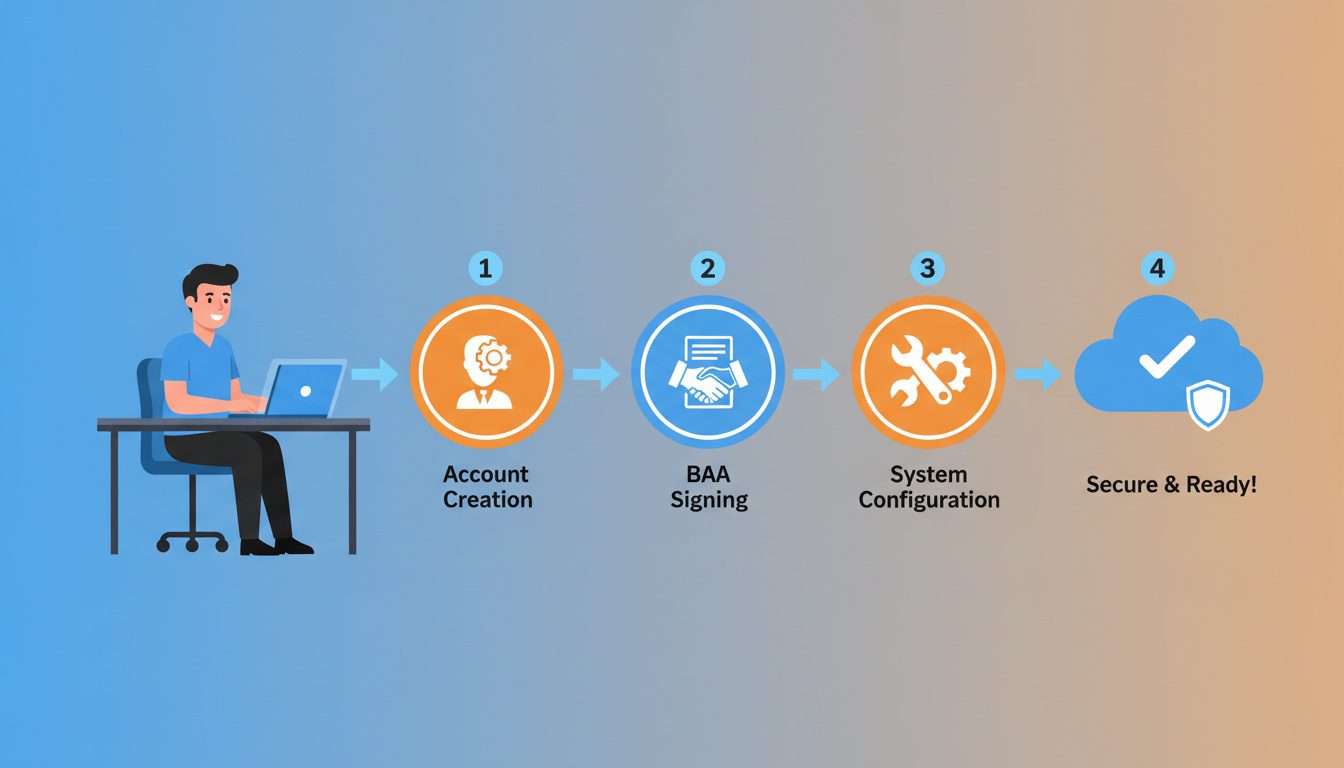
Choosing a provider is just step one.
Here's how to actually implement cloud storage in a HIPAA-compliant way.
Step 1: Sign the Business Associate Agreement
Do this BEFORE uploading any patient data. The process varies by provider:
Google Workspace:
- Log into Admin console as a super administrator
- Navigate to Account > Account Settings > Legal and Compliance
- Find the HIPAA Business Associate Amendment
- Review terms and answer confirmation questions
- Accept the agreement
Microsoft 365: The BAA is included in the Microsoft Online Services Data Protection Addendum. It's automatically in effect for eligible plans. Download a copy from aka.ms/BAA for your records.
Dropbox:
- Log into Admin console as an admin
- Go to Account settings
- Find the HIPAA section
- Review and sign the BAA electronically
Sync.com:
- Purchase an eligible plan (Pro Solo Professional or Teams)
- Contact Sync.com support to request the BAA
- Sign and return the agreement
Keep a copy of every signed BAA in your compliance documentation. You'll need these if ever audited.
Step 2: Configure Security Settings
Here's the thing... default settings aren't always HIPAA compliant.
Configure these essentials:
- Enable two-factor authentication (2FA) - Require for all users, no exceptions
- Set password policies - Minimum length, complexity requirements, expiration intervals
- Configure sharing restrictions - Limit who can share files externally
- Enable audit logging - Track all access and changes to files
- Set up alerts - Get notified about suspicious activity
- Disable permanent deletion - Prevent files from being permanently removed without admin approval
Each provider has different admin interfaces, but all offer these controls.
Take time to go through every security setting. It matters.
Step 3: Create a Folder Structure
Organize files for both compliance and efficiency:
- Patient Files - Separated by patient name or ID
- Insurance Documents - EOBs, correspondence, appeals
- Staff Documents - Training materials, policies containing PHI
- Business Documents - Any business files with patient information
- Archive - Older documents you need to retain
Set appropriate access permissions for each folder. Front desk staff might need access to insurance documents but not clinical notes, for example.
Step 4: Train Your Team
HIPAA requires workforce training. Cover these topics:
- How to access the cloud storage system securely
- What files can and cannot be stored
- Proper file naming conventions (no PHI in file names if shared externally)
- How to share files appropriately (and when NOT to share)
- What to do if they suspect a security incident
- Password and 2FA requirements
Document all training with dates and signatures. You'll need this if ever audited.
For more on building effective systems, see our guide on data privacy compliance for chiropractors.
Common HIPAA Cloud Storage Mistakes to Avoid

I've seen practices make these mistakes repeatedly.
Each one can result in HIPAA violations and potentially devastating fines.
Mistake 1: Using Personal Accounts for Patient Data
The problem: Using your personal Google Drive, iCloud, or Dropbox account to store patient files.
I get it. It's convenient. You're already logged in.
But personal accounts don't support BAAs. Even if the provider offers HIPAA-compliant business plans, your personal account is not covered.
This is a clear HIPAA violation.
The fix: Maintain strict separation between personal and business accounts. Use only HIPAA-eligible business plans with signed BAAs for any patient-related files.
Mistake 2: Assuming the Provider Handles Everything
The problem: Thinking "I chose a HIPAA-compliant provider, so I'm compliant."
Nope. Not how it works.
The provider's compliance is one piece. You're still responsible for:
- Proper configuration
- Access controls
- Staff training
- Your own policies and procedures
A secure platform used carelessly? Still a violation.
The fix: Treat provider compliance as the foundation, not the finish line. Implement your own policies and procedures on top of the provider's security features.
Mistake 3: Sharing Files Without Restrictions
The problem: Sharing links to patient files without passwords, expiration dates, or access restrictions.
An unrestricted sharing link is like leaving patient records on a park bench.
Anyone with the link can access the files. Indefinitely.
The fix: Always use password protection for shared links. Set expiration dates. Limit sharing to specific email addresses when possible. Review and revoke unnecessary shares regularly.
Mistake 4: Skipping the Risk Assessment
The problem: Implementing cloud storage without a formal risk assessment.
The HIPAA Security Rule requires covered entities to conduct risk assessments.
Here's the kicker: OCR specifically targets risk analysis failures—it's the most commonly cited violation in enforcement actions. Not doing one before implementing cloud storage creates liability.
The fix: Document your risk assessment before implementation. Identify potential threats, evaluate current safeguards, and document how cloud storage addresses (or creates) risks.
Mistake 5: No Backup Strategy
The problem: Relying solely on cloud storage without additional backups.
Cloud providers can have outages, account suspensions, or even go out of business.
If your only copy of patient data is in one cloud service? You're vulnerable.
The fix: Implement the 3-2-1 backup rule: 3 copies of data, on 2 different media types, with 1 copy offsite. Your EHR backup, cloud storage, and a local backup create proper redundancy.
For additional security best practices, see our guide on HIPAA-compliant chiropractic websites.
What to Do If You Have a Data Breach

Nobody wants to think about this.
But preparation matters. Here's what HIPAA requires if patient data is compromised.
Breach Notification Requirements
HIPAA mandates specific notification timelines:
- Patient notification: Within 60 days of discovering the breach
- HHS OCR notification: Within 60 days for breaches affecting 500+ individuals; annually for smaller breaches
- Media notification: Required if breach affects 500+ individuals in a single state
The 60-day clock starts when you discover the breach—not when it occurred.
This creates urgency around detection and investigation.
Immediate Response Steps
If you suspect a breach:
- Contain the incident - Disconnect affected systems, revoke compromised access
- Document everything - Dates, times, what happened, who was notified
- Investigate scope - Determine what data was accessed and how many patients affected
- Assess risk - Evaluate likelihood of harm to affected individuals
- Notify appropriately - Patients, HHS, media if required
- Implement fixes - Prevent recurrence
Your cloud storage provider should assist with breach investigation if the breach involves their systems. This is part of what the BAA covers.
The Cost Reality
Healthcare data breaches are expensive. According to recent data from HIPAA Journal:
- Average healthcare breach cost: $10.22 million (2026)
- Cost per breached record: $408 in healthcare vs. $148 average across industries
- Average time to identify a breach: 279 days (longest of any industry)
And here's what really matters for small practices...
In 2022, 55% of OCR financial penalties were imposed on small medical practices.
The days of regulators only going after large hospitals are over.
Frequently Asked Questions
Is Google Drive HIPAA compliant for chiropractors?
Google Drive can be HIPAA compliant, but only with paid Google Workspace plans (Business Standard or higher) and after signing a Business Associate Agreement (BAA) through the Admin console.
Free personal Google accounts are NOT HIPAA compliant. Not even close.
The key distinction: it's not Google Drive itself that's compliant or non-compliant—it's how you configure and use it. With a signed BAA, proper access controls, and staff training, Google Workspace meets HIPAA requirements.
Without those elements? Even a paid plan creates violations.
What is a Business Associate Agreement (BAA) and why do I need one?
A BAA is a legally binding contract between your chiropractic practice and any cloud storage provider that handles protected health information (PHI).
It ensures the provider agrees to safeguard patient data according to HIPAA requirements.
The BAA establishes the provider as your "business associate" and makes them legally responsible for PHI protection.
Without a signed BAA, storing ANY patient data in cloud storage violates HIPAA—regardless of how secure the platform claims to be.
This isn't optional or negotiable. It's a fundamental HIPAA requirement that regulators specifically look for during investigations.
How much does HIPAA-compliant cloud storage cost for a small chiropractic practice?
Costs range from $5-35 per user per month depending on the provider and features:
- Sync.com - HIPAA compliance starting at $20/month for solo practitioners
- Microsoft OneDrive - Starts at $12.50/user/month with Business Standard
- Google Workspace - HIPAA-eligible plans starting at $14/user/month
- Dropbox Business - Starts at $15/user/month (minimum 3 users)
- Box Enterprise - Starts at $35/user/month (minimum 3 users)
For a typical small practice with 3-5 users? Expect to budget $30-100/month for HIPAA-compliant cloud storage.
Can I use Dropbox for patient files in my chiropractic practice?
Dropbox can be HIPAA compliant only with Business Advanced or Enterprise plans that include a signed BAA.
Standard personal or basic business accounts cannot be used for patient data.
Even with an eligible plan, you must:
- Properly configure access controls
- Enable audit logging
- Disable features that could expose PHI (like public sharing)
- Train staff on HIPAA-compliant usage
Simply having a Dropbox Business account doesn't automatically make your use compliant.
Do I need separate cloud storage if my EHR already stores patient data?
It depends on your workflow.
Most chiropractic EHRs like ChiroTouch and Jane App include HIPAA-compliant storage for clinical data.
However, you may need additional cloud storage for:
- Insurance correspondence and appeals
- Scanned documents from external sources
- Business documents containing PHI
- Large files exceeding EHR storage limits
- Documents shared with external parties
- Additional backup copies
If you handle any patient-related documents outside your EHR system? You need HIPAA-compliant storage for those files.
What happens if I have a data breach with cloud storage?
HIPAA requires you to notify affected patients within 60 days of discovering a breach.
You must also report breaches affecting 500+ individuals to HHS Office for Civil Rights and potentially to media outlets in affected states.
Fines range from $100 to $50,000+ per violation depending on negligence level, with annual maximums up to $1.5 million per violation category.
The average healthcare breach costs $10.22 million in 2026, including fines, legal fees, forensic investigation, patient notification, credit monitoring services, and reputation damage.
Which cloud storage has the best encryption for healthcare data?
Sync.com and Tresorit offer zero-knowledge encryption, meaning even the provider cannot access your data.
This is the gold standard for healthcare privacy because your encryption keys never leave your control.
Most other providers like Google, Microsoft, and Dropbox use AES-256 encryption at rest and TLS encryption in transit. This meets HIPAA requirements but gives the provider technical access to your data.
For most practices, standard encryption with a signed BAA provides adequate protection. Zero-knowledge encryption adds extra security if you want maximum privacy.
How do I sign a BAA with Google, Microsoft, or Dropbox?
Google Workspace: Sign electronically through Admin console. Navigate to Account Settings > Legal and Compliance > HIPAA Business Associate Amendment. Review terms, answer confirmation questions, and accept.
Microsoft 365: The BAA is automatically included in the Data Protection Addendum when you subscribe to eligible plans (Business Standard or higher). Download your copy from aka.ms/BAA.
Dropbox: Sign through the Admin console in your team account settings under the HIPAA section.
Always confirm the BAA is signed and keep a copy in your compliance documentation BEFORE uploading any patient data.
Making Your Decision
Choosing HIPAA-compliant cloud storage doesn't have to be complicated.
Here's the quick decision framework:
Choose Sync.com if:
- You're a solo practitioner or small practice (1-5 users)
- Zero-knowledge encryption matters to you
- You want the simplest setup process
- You don't need deep integration with productivity suites
Choose Google Workspace if:
- Your team already uses Gmail and Google apps
- You want integrated email, storage, and video conferencing
- You have 3+ staff members
- You need generous storage (2TB+ per user)
Choose Microsoft 365 if:
- You're a Windows-based practice
- Your team uses Microsoft Office
- You want the BAA included automatically
- You value deep integration with Windows systems
Choose Dropbox Business if:
- You frequently share large files with external parties
- Simple, reliable file sync is your priority
- You already use and like Dropbox personally
Choose Box if:
- You have 10+ staff members
- You need extensive third-party integrations
- You require enterprise compliance features
- Budget isn't your primary constraint
Whatever you choose, remember: the provider's security features are just the foundation.
Your configuration, policies, training, and ongoing management determine actual compliance.
For help evaluating your entire digital presence—not just storage—check out our guide on building high-converting chiropractic websites.
Look, I get it—figuring out HIPAA-compliant cloud storage feels like one more technical headache on top of actually running your practice.
If you're thinking "this all makes sense, but I don't have time to dig into cloud storage configuration," you're not alone. Most successful chiropractors we work with felt the same way before they realized their digital systems were quietly creating compliance risks.
That's why we created our Free Website Conversion Analysis. It's not a sales pitch—it's a genuine walkthrough of the 3 biggest problems killing your bookings, delivered personally via Loom video within 24 hours.
We'll show you exactly:
- Why visitors leave without booking
- What's broken on mobile devices (where most searches happen)
- Missing trust signals costing you patients
- Where you rank vs. local competitors
- Simple fixes that drive more calls this month
You'll also get an instant case study while you wait, showing real examples of how other chiropractors fixed these exact problems.
Get your free analysis here — no credit card, no obligation, just actionable insights you can use whether you work with us or not.
Because every day without proper systems in place is another day patient data sits unprotected—and competitors with better digital presence are attracting the patients you're missing.

Gerek Allen
Co-Owner iTech Valet
Entrepreneur, patriot, CrossFit junkie, IPA enthusiast, loves to travel to tropical destinations, and knows way too many movie quotes.


About iTech Valet
iTech Valet specializes in web design and content marketing for online entrepreneurs who want to share their expertise.
Services Include:
- Web Design
- Graphic Design
- Sales Copy
- Funnel Building
- Authority Sites
- Membership Sites
- Course Creation
- Email Systems
- Content Marketing
- Competitive Analysis
- Tech Integrations
- Strategic Planning
NEED MORE CLIENTS?
Free conversion-focused analysis uncovers the 3 biggest problems killing your bookings — we'll walk you through your results personally

621 Enterprises, Inc. | Copyright 2022 | All rights reserved