


How Do I Optimize Images for My Chiropractic Website? (2026)
 by Gerek Allen ~ Last Updated: December 16th, 2025 ~ 10 Min Read
by Gerek Allen
~ Last Updated: December 16th, 2025 ~
~ 10 Min Read ~
Compress your images to under 200KB, use WebP format, write descriptive alt text with your location, and name files with actual keywords instead of "IMG_4532.jpg." That's the short answer.
Here's the thing.
Most chiropractors upload photos straight from their phone without thinking twice. That 4MB treatment room photo? It's quietly murdering your website speed.
And slow websites don't just annoy visitors. They cost you patients.
Google's own research shows bounce rates jump 32% when load time goes from 1 to 3 seconds. At 5 seconds? You're looking at 90% bounce rates.
That's brutal.
The good news? Image optimization isn't complicated. It's just a system. Once you set it up, it runs on autopilot.
This guide walks through everything step-by-step. We'll cover formats, compression, alt text, file naming, and even the local SEO stuff that helps you show up in "chiropractor near me" searches.
Let's get into it.
Why This Actually Matters for Your Practice
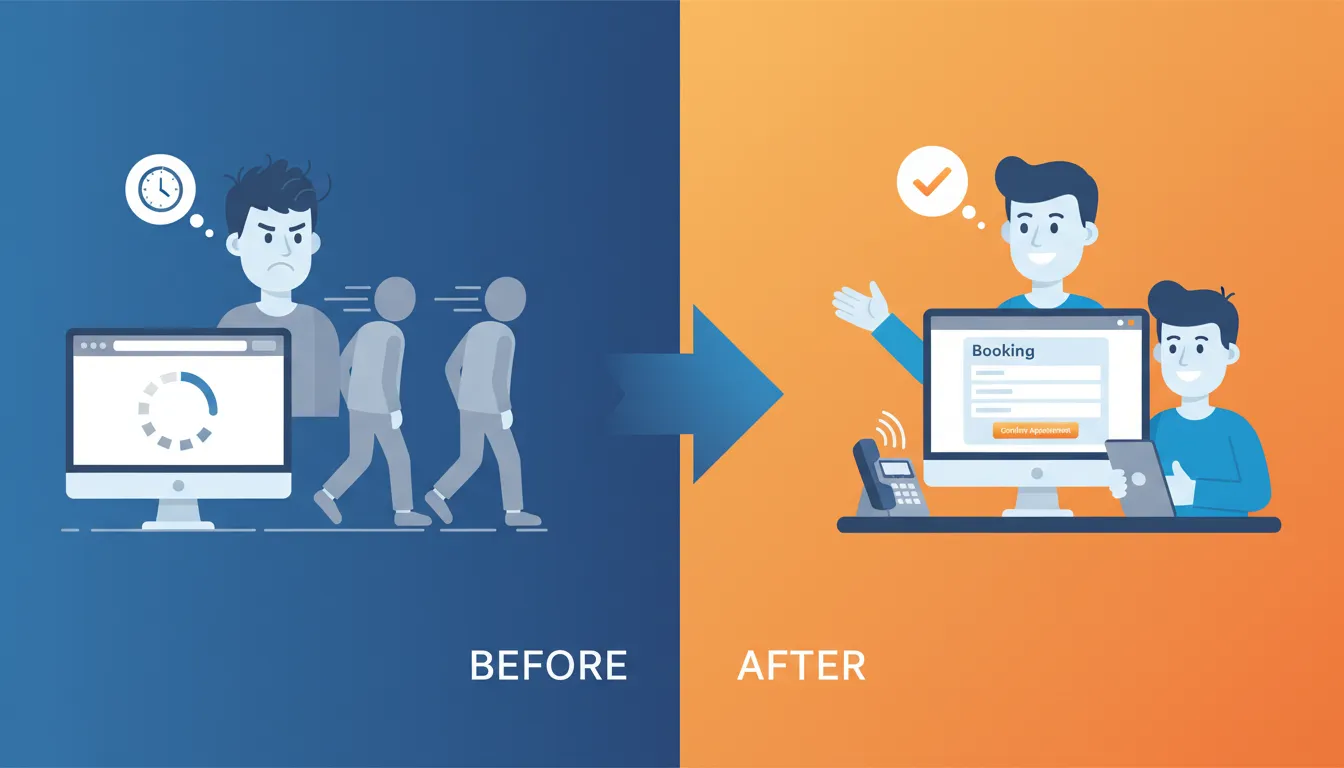
Before we dive into the how-to stuff, let's talk about why this matters. Because if you're going to spend time on this, you should know what's at stake.
The Money You're Losing Right Now
Here's a quick reality check.
Images are usually the biggest reason websites load slowly. Not code. Not plugins. Images.
And slow sites lose patients. Period.
Some real numbers to chew on:
- Bounce rates increase 32% when load time goes from 1 to 3 seconds (Google research)
- At 5 seconds, 90% of visitors bounce before seeing anything
- One company doubled conversions just by cutting load times 65% through image optimization
- A 0.1 second improvement in page speed shows measurable conversion gains across the entire buyer journey
Let's do some quick math.
Say you get 500 website visitors monthly and convert 2% into appointment requests. That's 10 inquiries.
If slow images cause a 20% higher bounce rate? You're losing roughly 100 visitors who never even see your content.
Fix your images. Keep those visitors. Convert more of them into patients.
Sound fair?
Core Web Vitals and Google Rankings
Google uses something called Core Web Vitals as a ranking factor.
The biggest one for images? Largest Contentful Paint (LCP).
LCP measures how fast the largest visible element loads. On most chiropractic websites, that's your hero image or the main photo on service pages.
Google's official guidance: LCP should be under 2.5 seconds. Anything over 4 seconds is "poor."
Here's the kicker.
As of late 2025, only about 53% of websites pass all Core Web Vitals. That means if you nail this, you're already beating half your competition.
Your website speed directly impacts whether Google shows you above or below the chiropractor down the street.
Step 1: Pick the Right Image Format
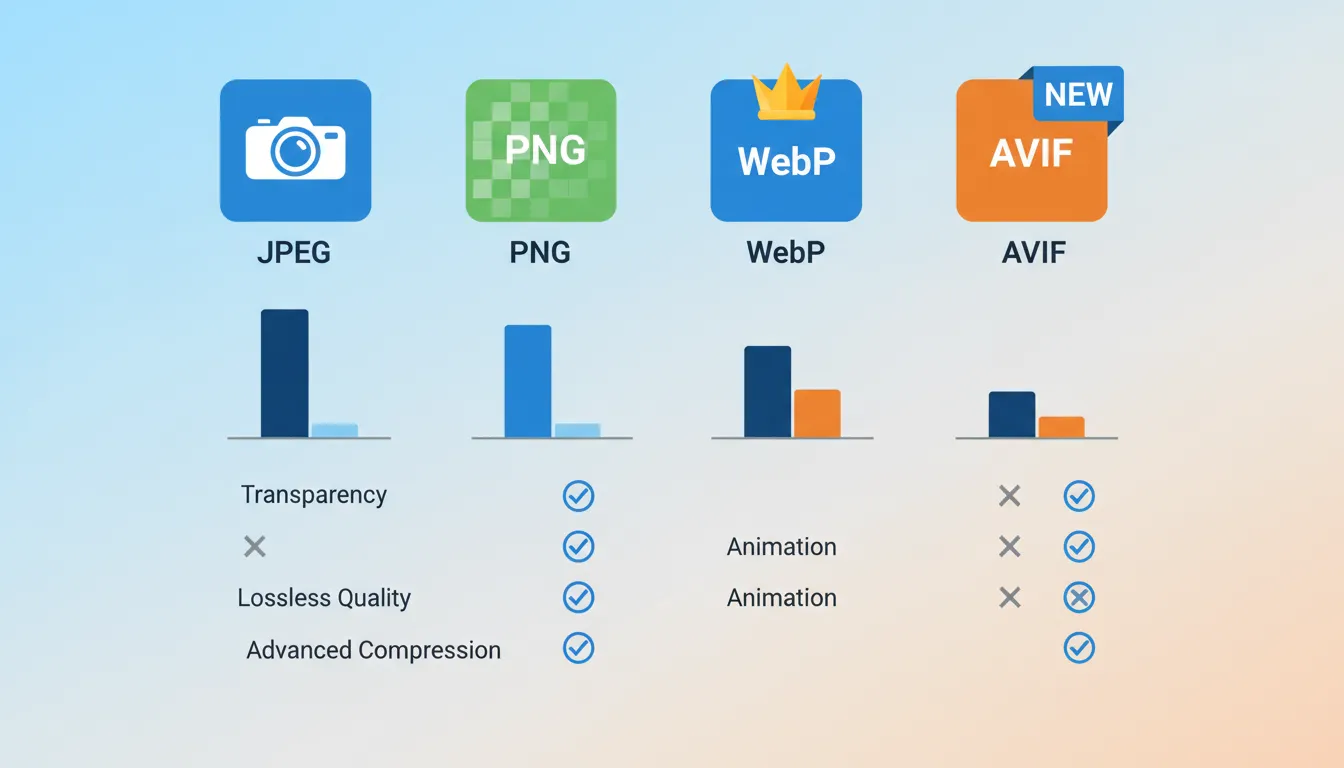
The format you pick sets the foundation. Get this wrong and no amount of compression will save you.
Your Options in 2026
Let's break this down simply:
- JPEG - The old standard. Works fine. But there are better options now.
- PNG - Lossless quality and supports transparency. Great for logos. But file sizes are bigger.
- WebP - Google's modern format. 25-34% smaller than JPEG at the same quality. Supports transparency too. Over 95% browser support now.
AVIF - The newest kid. Even better compression than WebP (often 50% smaller than JPEG). About 93% browser support and climbing.
What's Actually Included
For most chiropractic websites:
Use WebP for everything. Photos, graphics, all of it. The compression is excellent, quality stays high, and basically every browser supports it.
Use PNG only for logos that need transparent backgrounds. And honestly? WebP supports transparency too, so you might not even need PNG.
Consider AVIF if you want to get fancy. Serve AVIF first with WebP as fallback. Maximum compression, best quality.
| JPEG | Photos (old school) | Medium | 100% | No |
| PNG | Logos only | Large | 100% | Yes |
| WebP | Everything | Small | 95%+ | Yes |
| AVIF | Everything (cutting edge) | Smallest | 93%+ | Yes |
Now... this part matters.
You don't have to manually convert every image. Plugins like ShortPixel and Imagify automatically convert uploads to WebP and serve the right format to each visitor.
Set it up once. Forget about it.

NEED MORE CLIENTS?
Free conversion-focused analysis uncovers the 3 biggest problems killing your bookings — we'll walk you through your results personally

Step 2: Resize Before You Upload
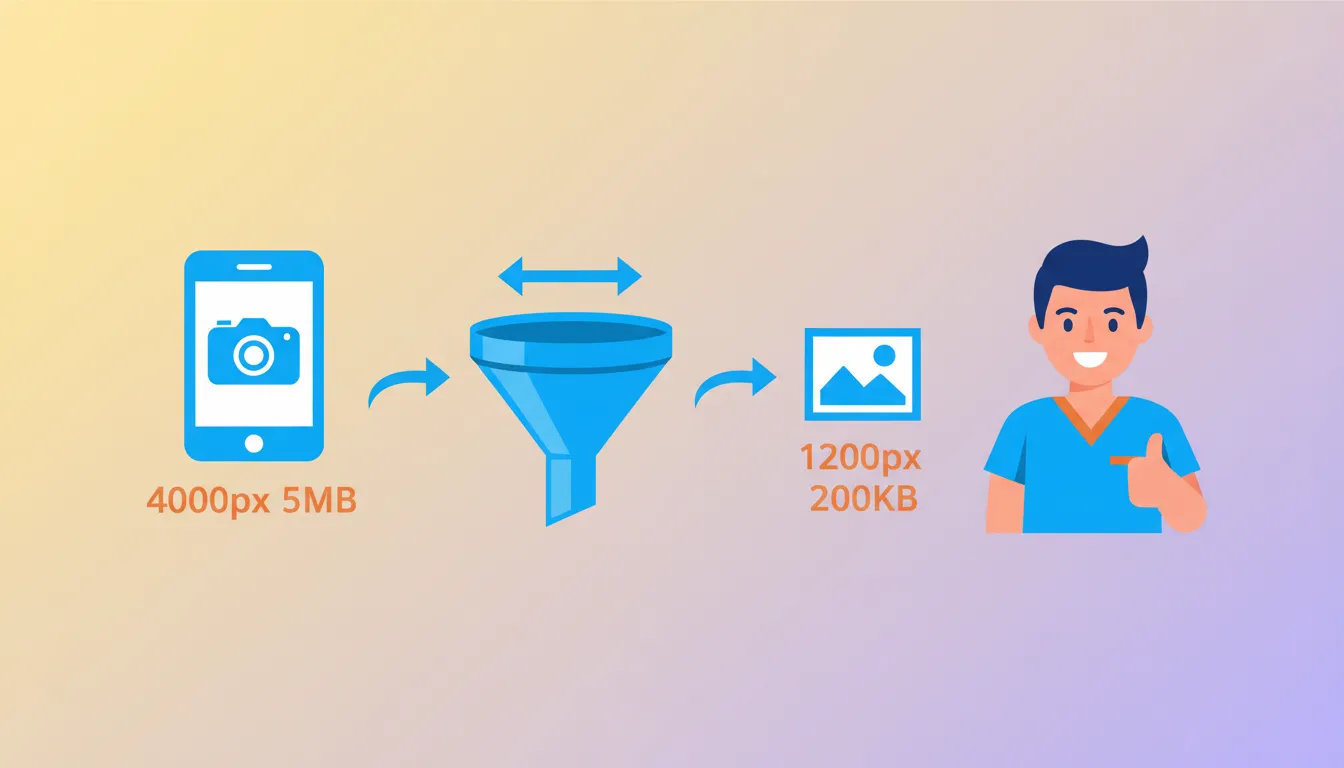
Alright, quick reality check.
Your phone takes 12+ megapixel photos. That's 4000x3000 pixels or bigger. Files often hit 5MB or more.
Your website displays images at maybe 800-1200 pixels wide.
See the problem?
Why This Matters
If you upload a 4000px wide image but display it at 800px, visitors still download the entire 4000px file.
The browser just shrinks it for display. All that extra data? Wasted bandwidth. Slower loading. Frustrated patients.
Even with compression, oversized images are a problem.
The Right Sizes for Chiropractic Websites
- Hero images (big banners at top) - 1200-1920px wide, under 300KB
- Blog images - 800-1200px wide, under 150KB
- Service page photos - 800-1200px wide, under 150KB
- Thumbnails - Actual display size (usually 300-400px), under 50KB
- Gallery images - 1200px wide, under 200KB
| Hero/Banner | 1200-1920px | Under 300KB |
| Blog Images | 800-1200px | Under 150KB |
| Thumbnails | Actual display | Under 50KB |
How to Actually Resize
Before uploading anything:
Free online tools:
- Squoosh - Google's free tool. Resize and compress in one step. Super easy.
- iLoveIMG - Batch resize multiple images at once.
Built-in options:
- Preview (Mac) - Open image → Tools → Adjust Size
- Photos (Windows) - Open image → Three dots → Resize
WordPress plugins:
- Imsanity - Automatically resizes images above your max on upload
Takes two minutes to resize before upload. Do it.
Step 3: Compress Those Files
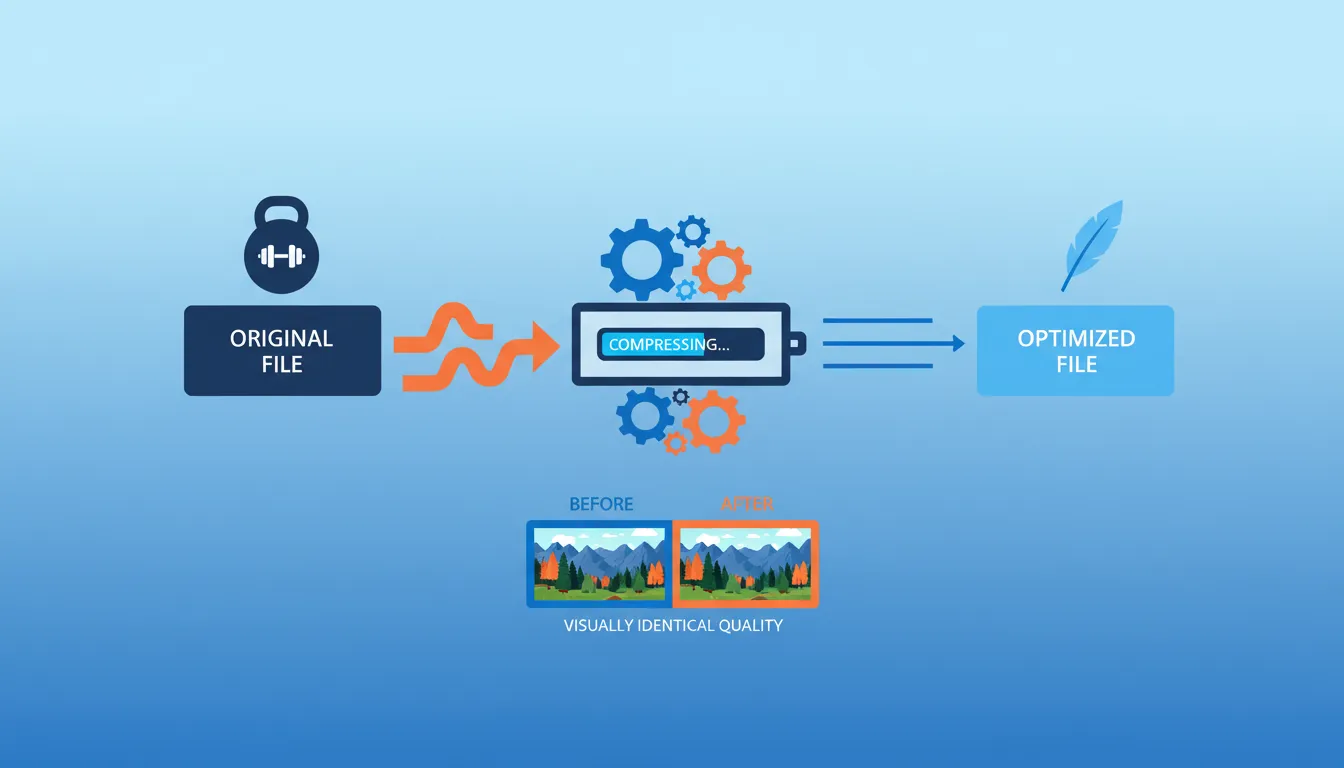
Even properly sized images need compression. This is where the real file size reductions happen.
Lossy vs. Lossless (Quick Explanation)
- Lossy compression - Removes some data permanently. Smaller files, slight quality reduction. Usually invisible to human eyes. Best for photos.
- Lossless compression - Removes unnecessary metadata only. Smaller reductions, zero quality loss. Good for logos.
For your website? Lossy compression at 80-85% quality is the sweet spot.
You'll typically see 50-80% file size reduction with no visible difference. That's not a typo. Your 500KB image becomes 100-250KB and looks exactly the same.
The Best WordPress Plugins
Here's what I'd recommend:
- ShortPixel - Consistently the best compression. Does lossy, glossy, and lossless. Auto-converts to WebP. Backs up originals. Free tier: 100 images/month. Paid: $4.99/month for 5,000 images.
- Imagify - Three compression levels (Normal, Aggressive, Ultra). Nice interface. Made by the WP Rocket team. Free tier: ~200 images/month. Paid: $4.99/month for 500MB.
- Optimole - Cloud-based with built-in CDN. Serves optimized images based on visitor's device. Free tier: 1GB/month. Paid: Starting at $19/month.
EWWW Image Optimizer - Processes on your server (no external API for basic stuff). Unlimited free basic compression.
| ShortPixel | Excellent | 100/mo | $4.99/mo | Yes |
| Imagify | Excellent | ~200/mo | $4.99/mo | Yes |
| Optimole | Very Good | 1GB/mo | $19/mo | Yes |
| EWWW | Good | Unlimited basic | $7/mo | Yes |
Setting It Up (ShortPixel Example)
Takes about 5 minutes:
- Install ShortPixel Image Optimizer plugin
- Sign up for free API key at shortpixel.com
- Enter API key in Settings → ShortPixel
- Select "Lossy" compression
- Enable WebP conversion
- Turn on auto-optimization for new uploads
- Click "Bulk Optimize" for existing images
Done. Every new upload gets compressed automatically. Existing images process in the background.
Pretty damn easy, right?
Step 4: Name Your Files Like a Human
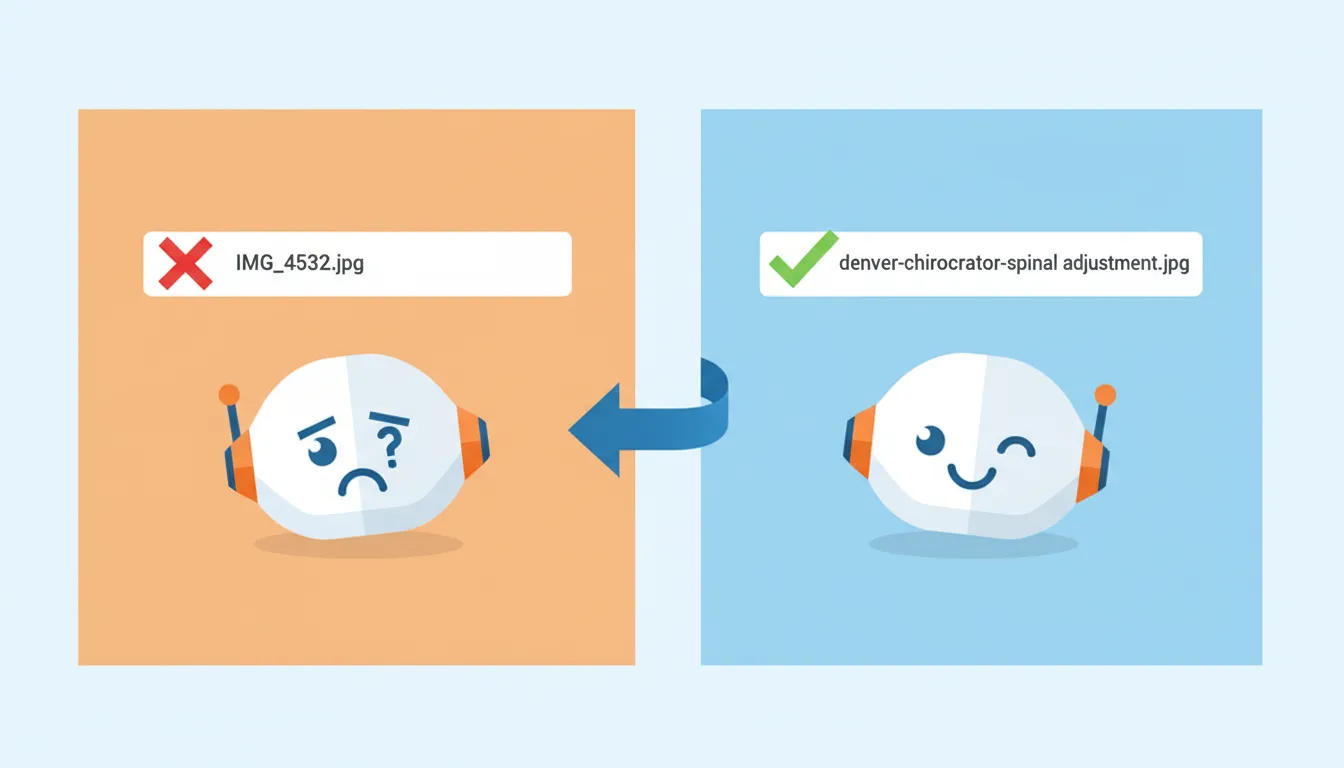
Here's the thing about file names.
Google explicitly says they use filenames to understand what images show. It's literally in their documentation.
And yet most chiropractors upload "IMG_4532.jpg" without a second thought.
The Rules
- Use 2-5 descriptive words - Long enough to be meaningful, short enough to stay readable
- Separate words with hyphens - Search engines read hyphens as spaces
- Keep everything lowercase - Avoids case-sensitivity issues
- Include location when relevant - If it shows your Denver office, include "denver"
- Put important words first - Keywords at the beginning carry more weight
Good vs. Bad Examples
| IMG_4532.jpg | spinal-adjustment-technique.jpg |
| DSC0089.jpg | denver-chiropractor-patient-consultation.jpg |
| photo1.jpg | decompression-therapy-treatment-room.jpg |
| hero.jpg | back-pain-relief-chiropractic-care.jpg |
| new-patient-FINAL.jpg | new-patient-exam-portland-chiropractor.jpg |
Takes 10 seconds to rename a file. Do it every time.
For Local SEO Specifically
If you're trying to rank in specific areas, include location naturally:
- seattle-chiropractic-office-exterior.jpg
- dr-smith-adjustment-portland-oregon.jpg
- westside-wellness-treatment-room.jpg
Don't force it into every filename. But when the image actually shows your location? Use it.
This ties into your overall local SEO strategy. File names are just one signal, but they're easy to get right.
Step 5: Write Alt Text That Works
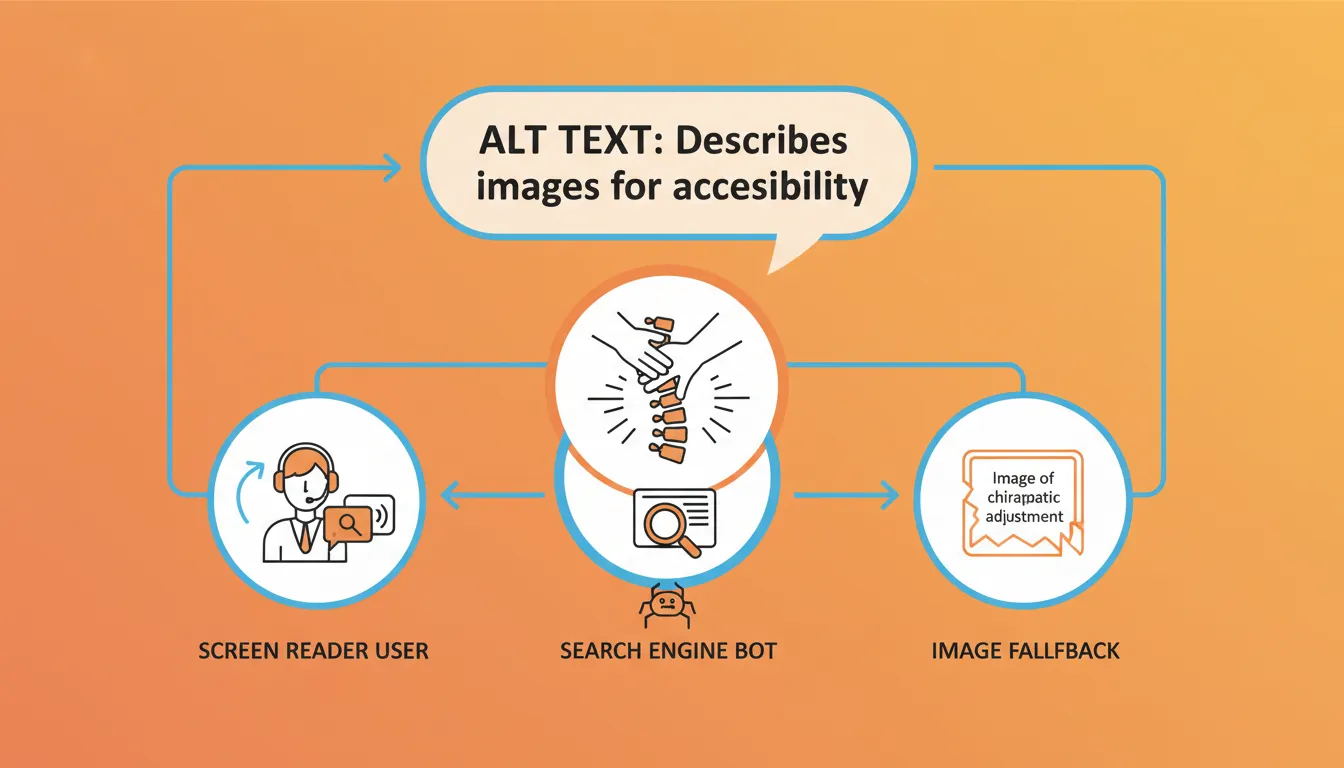
Alt text does two jobs.
First, it helps visually impaired visitors using screen readers understand what images show. That's the accessibility piece.
Second, it helps search engines understand your images. That's the SEO piece.
Both matter.
The Basics
- Keep it under 125 characters - Screen readers cut off after that
- Describe what's actually in the image - Not what you wish was there
- Don't start with "image of" or "picture of" - Screen readers already say it's an image
- Include your city when relevant - If the image shows your location
- Use keywords naturally - Never stuff them
Examples for Chiropractic Websites
| Adjustment photo | chiropractor | Chiropractor performing spinal adjustment on patient in Denver office |
| Office exterior | building | Modern chiropractic clinic exterior on Main Street Seattle |
| Treatment room | chiro room back adjustment spine | Comfortable treatment room with adjustment table and natural lighting |
| Team photo | staff | Dr. Johnson and wellness team at Portland Family Chiropractic |
| X-ray review | spine | Chiropractor reviewing spinal x-ray results with patient |
See the difference?
Bad alt text tells you nothing useful. Good alt text paints a picture with relevant keywords worked in naturally.
When to Skip Alt Text
Some images are purely decorative. Background patterns. Fancy dividers. Design elements that don't convey information.
For those, use empty alt text: alt=""
This tells screen readers to skip it entirely. No unnecessary noise.
Your hero image? Definitely needs alt text. That swirly background graphic? Probably decorative.
Adding Alt Text in WordPress
- Go to Media → Library
- Click any image
- Find "Alt Text" field on the right
- Type your description
- Click away to save
For images in posts, click the image block and look for Alt Text in the sidebar settings.
Make this a habit. Every image. Every time.
Step 6: Set Up Lazy Loading
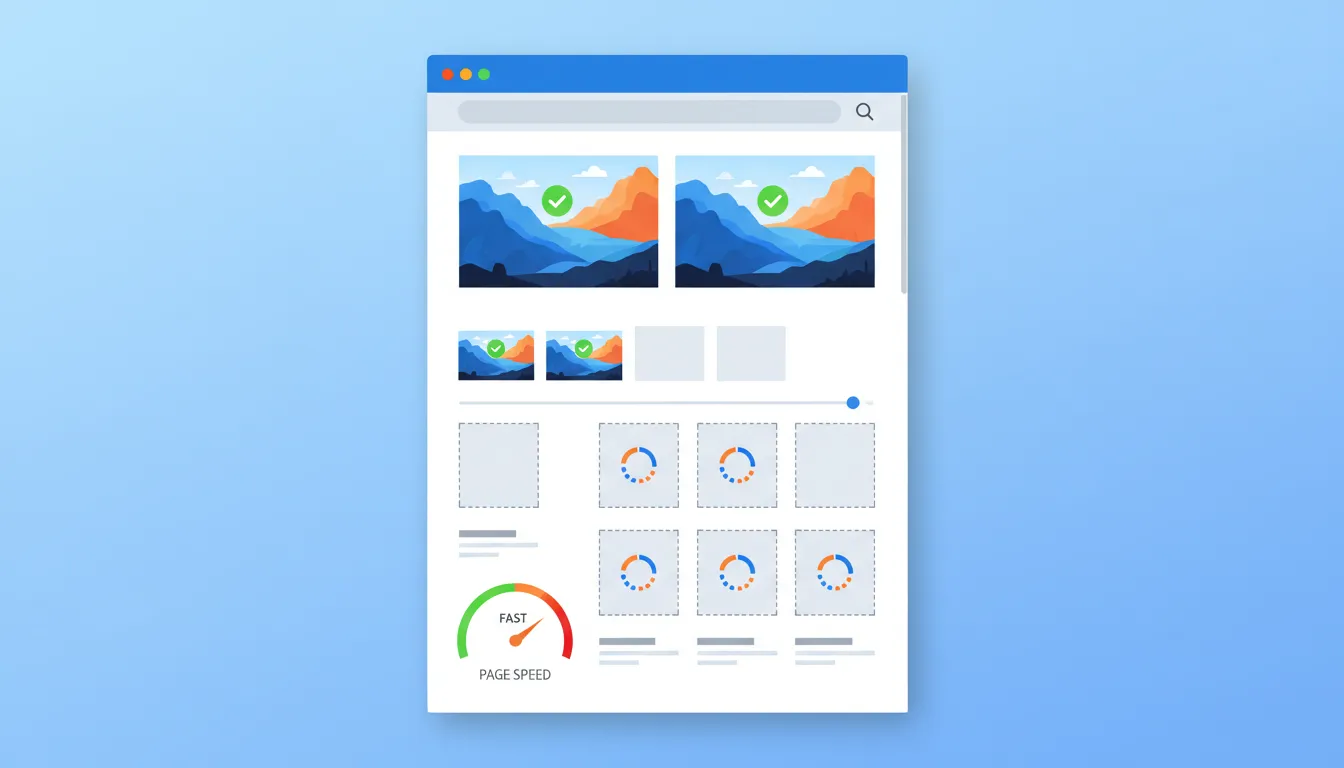
Lazy loading is one of those things that sounds complicated but isn't.
The idea is simple: don't load images until users actually scroll near them.
Why It Helps
Without lazy loading, browsers download every image on a page immediately. All of them. Whether visitors will see them or not.
A long blog post with 10 images? All 10 start downloading the second someone lands on the page.
With lazy loading, only visible images load first. The rest wait until users scroll down.
Result? Faster initial page load. Better Core Web Vitals scores. Less bandwidth wasted.
The Easy Way
Modern browsers support lazy loading natively. Just add one attribute:
<img src="your-image.jpg" alt="Your alt text" loading="lazy">
That's it. One attribute.
WordPress 5.5+ includes this automatically for content images. But check your theme—some need configuration.
When to Skip Alt Text
Some images are purely decorative. Background patterns. Fancy dividers. Design elements that don't convey information.
For those, use empty alt text: alt=""
This tells screen readers to skip it entirely. No unnecessary noise.
Your hero image? Definitely needs alt text. That swirly background graphic? Probably decorative.
The One Catch
Here's where people mess up.
Don't lazy load your hero image. Don't lazy load anything visible when the page first loads.
Why? Because Largest Contentful Paint (that Google ranking metric) measures how fast your biggest visible element loads.
If you lazy load your hero image, it waits until after initial render. Your LCP score tanks. Rankings suffer.
Rule of thumb: Lazy load everything below the fold. Load everything above the fold normally.
Most good plugins (WP Rocket, ShortPixel, etc.) detect this automatically. But verify it's working right.
Step 7: Consider Geo-Tagging (Maybe)
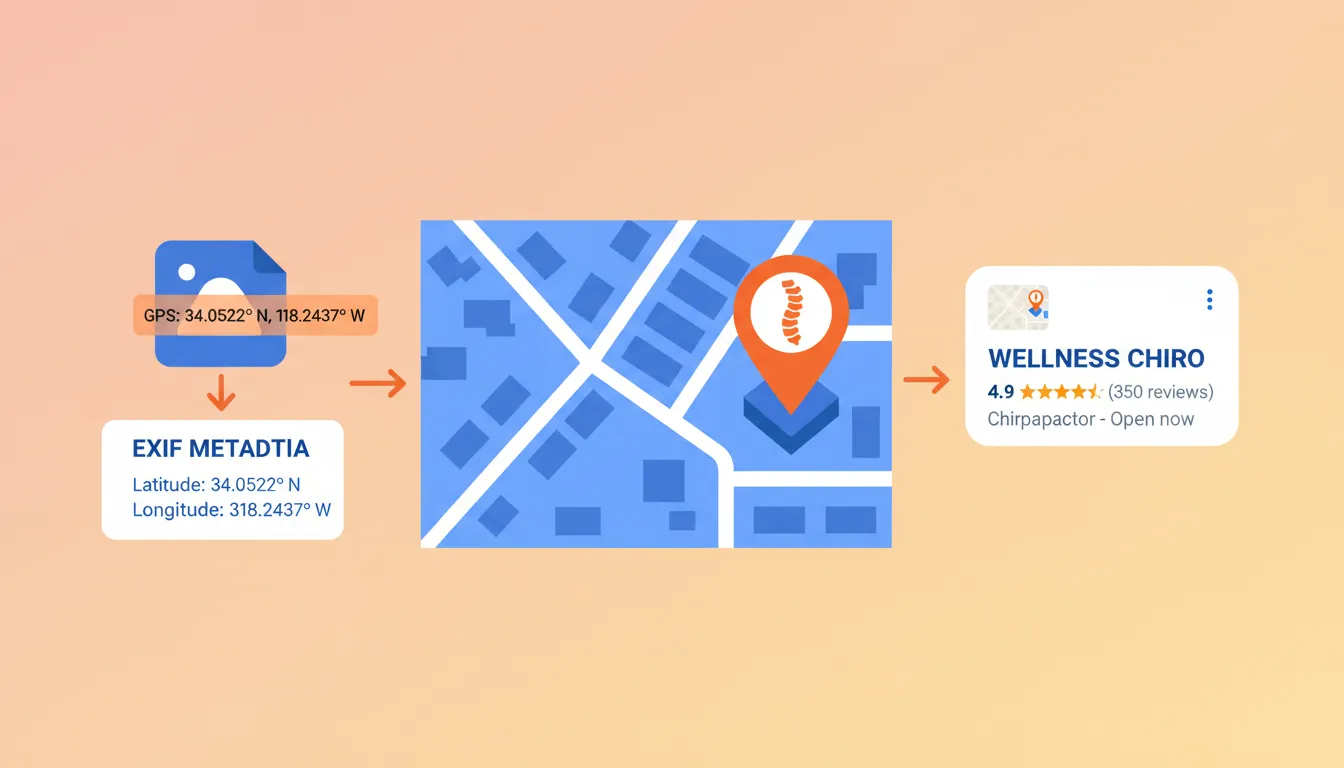
Alright, let's keep it real here.
Geo-tagging is where you embed GPS coordinates into your image files. The theory is it helps search engines connect your images with your location.
But does it actually work?
The Honest Answer
The evidence is mixed.
A 2024 study tested geo-tagging across 27 business locations. Results:
- "Near me" queries saw improvements in the targeted areas
- Specific city name queries actually saw ranking decreases
- Impact was statistically significant but limited
Google officially strips EXIF data from uploaded images. But they might keep it for ranking purposes before stripping.
John Mueller from Google said geo-tagging is "unnecessary for SEO purposes." But what Google says and what their algorithm does aren't always the same thing.
The Pragmatic Approach
Do geo-tag when:
- Photos are taken at your actual practice location
- You can upload within 24 hours of taking them
- You're uploading to Google Business Profile
- Images genuinely relate to your physical location
Don't bother when:
- Using stock photos (they weren't taken at your location)
- The image has nothing to do with location
- You'd be adding fake coordinates to game the system
Here's a tool: GeoImgr - Free online tool. Upload image, click on map, download tagged version.
Warning: Most compression plugins strip EXIF data by default. If you geo-tag, either tag after compression or configure your plugin to preserve location data.
The Bigger Picture
Geo-tagging alone won't transform your local rankings.
It works best as part of a comprehensive strategy: consistent NAP info, Google Business Profile optimization, reviews, schema markup, local content.
Don't skip the fundamentals to chase edge cases.
Step 8: Test and Keep Testing
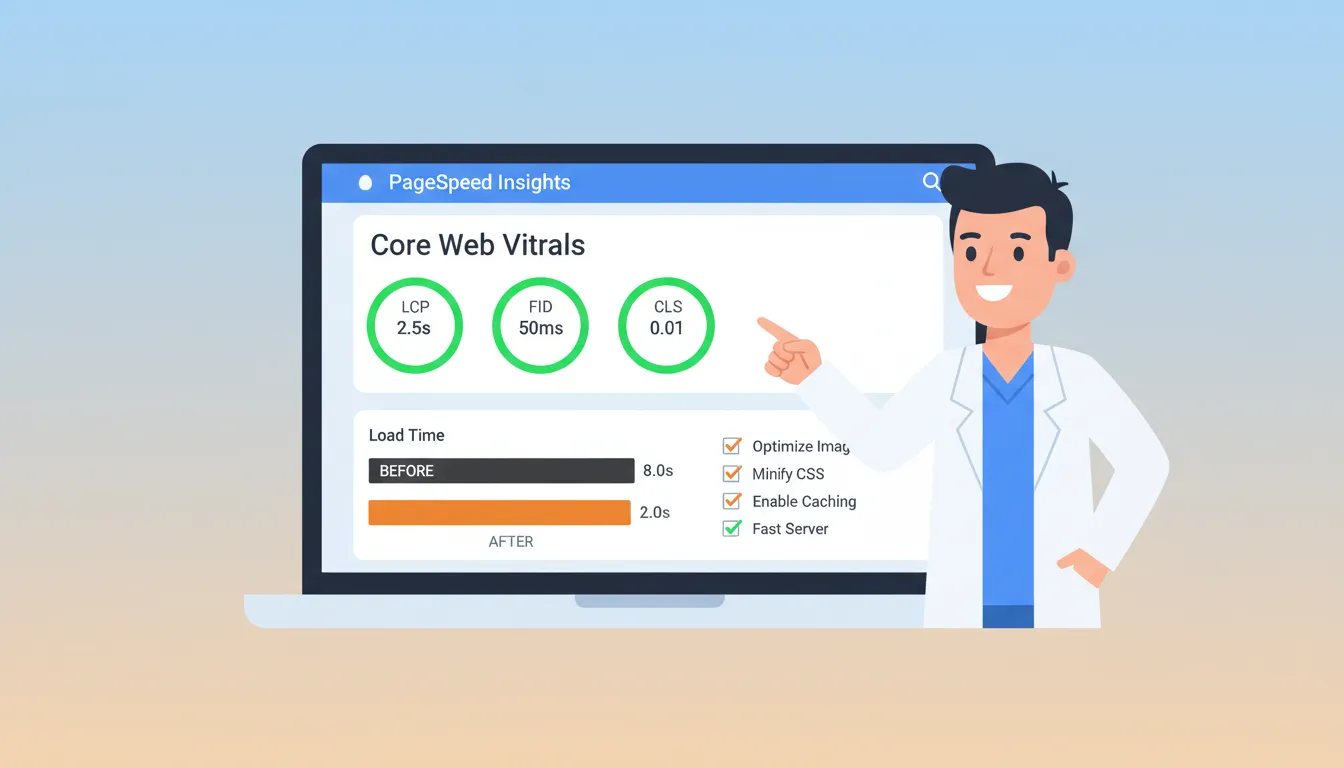
You can't improve what you don't measure.
After implementing all this, verify it's actually working.
Run PageSpeed Insights
Go to pagespeed.web.dev and enter your URL.
You'll see:
- Performance score - 0-100 rating
- Largest Contentful Paint - How fast your biggest element loads
- Cumulative Layout Shift - Whether images cause layout jumping
- Specific recommendations - Which images need attention
Look for these common image issues:
- "Serve images in next-gen formats" → Need WebP conversion
- "Properly size images" → Images larger than displayed size
- "Efficiently encode images" → Need more compression
- "Defer offscreen images" → Lazy loading not working
What Scores to Aim For
| Performance | 0-49 | 50-89 | 90-100 |
| LCP | >4.0s | 2.5-4.0s | <2.5s |
| CLS | >0.25 | 0.1-0.25 | <0.1 |
For chiropractic websites, aim for:
- Performance: 70+ on mobile (90+ on desktop)
- LCP: Under 2.5 seconds
- Total page weight: Under 2MB, ideally under 1MB
Ongoing Monitoring
One-time optimization isn't enough. Things change.
Monthly checks:
- Run PageSpeed Insights on your homepage and top pages
- Check Core Web Vitals in Search Console
- Spot-check recent uploads for proper optimization
Trigger a full audit when:
- Scores drop unexpectedly
- You change themes or page builders
- Pages feel slower than before
- Search Console shows Core Web Vitals warnings
Your website conversion rate depends on these metrics. Faster pages convert better. Period.
Quick Reference Checklist

Here's everything in one place. Use this for every image.
Before Upload
- Format - WebP for photos. PNG only for transparent logos.
- Resize - Hero: 1200-1920px. Blog: 800-1200px. Thumbnails: actual display size.
- Compress - Use Squoosh or TinyPNG. Target under 200KB for standard images.
- File name - 2-5 descriptive words, hyphens, lowercase, location if relevant.
After Upload
- Alt text - Under 125 characters. Descriptive. Location when relevant. No "image of."
- Verify compression - Plugin processed it. WebP version generated.
- Check lazy loading - Applied to below-fold images only.
Monthly
- Run PageSpeed Insights on key pages
- Check Core Web Vitals in Search Console
- Verify compression plugin is active
- Spot-check recent uploads
That's the whole system. Not complicated. Just consistent.
Ready to See How We Fix Chiropractic Websites?
We've transformed 150+ service-based websites using our proven 4-step system. See exactly how we combine premium design with conversion science.
Frequently Asked Questions
What image format should I use for my chiropractic website?
WebP is the way to go for most chiropractic websites in 2026.
It's 25-34% smaller than JPEG with the same quality. Over 95% of browsers support it now.
Use PNG only when you need transparent backgrounds (like your logo). If you want maximum compression, serve AVIF with WebP as fallback.
Most compression plugins handle format conversion automatically. Set it up once and forget about it.
How do I write good alt text for chiropractic images?
Keep it under 125 characters. Describe what's actually in the image.
Skip starting with "image of" since screen readers already say that. Include your city naturally when the image shows your location. Don't stuff keywords—it hurts more than helps.
Good example: "Chiropractor performing spinal adjustment in Denver clinic"
Bad example: "chiropractic adjustment back pain spine doctor Denver Colorado treatment"
What's the best WordPress plugin for compressing chiropractic website images?
ShortPixel and Imagify are both solid choices.
ShortPixel consistently delivers the best compression rates. Costs $4.99/month for 5,000 images. Imagify has a cleaner interface and works great with WP Rocket.
Both auto-compress on upload, convert to WebP, and let you bulk-optimize existing images.
Pick one and run with it. Don't overthink this.
Does geo-tagging images actually help local SEO for chiropractors?
Honestly? The jury's still out.
A 2024 study found geo-tagged images helped "near me" searches but actually hurt rankings for specific city name searches. Google strips EXIF data from uploads but might keep it for ranking.
If you're going to do it, use real coordinates from photos actually taken at your office. Upload within 24 hours when possible. Don't geo-tag stock photos—that's just weird.
It's a nice-to-have, not a game-changer. Focus on the fundamentals first.
How big should images be on my chiropractic website?
- Hero images: 1200-1920px wide, under 300KB
- Blog images: 800-1200px wide, under 150KB
- Thumbnails: actual display size, under 50KB
Never upload photos straight from your phone. Those 4000px, 5MB monsters will tank your page speed.
Resize first. Compress second. Upload third.
What is lazy loading and should I use it on my chiropractic website?
Lazy loading tells images below the fold to wait until users scroll near them before loading.
Yes, use it. It makes your initial page load way faster.
But here's the catch: don't lazy load your hero image or anything visible when the page first loads. That actually hurts your Largest Contentful Paint score.
WordPress 5.5+ does this automatically, but double-check your theme is configured correctly.
How do I name image files for SEO on my chiropractic website?
Use 2-5 descriptive words. Separate with hyphens. Keep it lowercase.
Include your city when the image actually shows your location.
Good: spinal-adjustment-denver-chiropractor.jpg
Bad: IMG_4532.jpg or photo-final-FINAL-v2.jpg
Takes 10 seconds to rename files properly. Do it.
Will optimizing images really make a difference in my chiropractic website rankings?
Yep.
Google uses Core Web Vitals as a ranking factor. Images directly impact your Largest Contentful Paint score.
Bounce rates jump 32% when load time goes from 1 to 3 seconds. At 5 seconds? 90% bounce.
One company cut load times 65% just from image optimization and doubled their conversions.
This stuff matters. A lot.
Wrapping Up
Image optimization isn't sexy. Nobody brags about their compressed JPEGs at networking events.
But here's the thing.
It's one of the highest-impact, lowest-effort improvements you can make to your chiropractic website.
The chiropractors who take this seriously load faster than competitors still uploading 4MB photos straight from their phones. In a world where bounce rates spike after 3 seconds, that speed advantage translates directly to more patients.
Start with your homepage. Run PageSpeed Insights. Install a compression plugin. Bulk-optimize existing images.
Then make proper optimization a habit for every new image.
Small effort. Big returns.
Look, I get it—you've read through all this and you're thinking "this makes sense, but I don't have time to audit my entire website on top of running my practice."
If you're thinking "this all makes sense, but I don't have time to do it right," you're not alone. Most successful chiropractors we work with felt the same way before they realized their website and online presence were quietly costing them 15-20 qualified patient leads every single month.
That's why we created our Free Website Conversion Analysis. It's not a sales pitch—it's a genuine walkthrough of the 3 biggest problems killing your bookings, delivered personally via Loom video within 24 hours.
We'll show you exactly:
- Why visitors leave without booking
- What's broken on mobile devices (where most searches happen)
- Missing trust signals costing you patients
- Where you rank vs. local competitors
- Simple fixes that drive more calls this month
You'll also get an instant case study while you wait, showing real examples of how other chiropractors fixed these exact problems.
Get your free analysis here — no credit card, no obligation, just actionable insights you can use whether you work with us or not.
Because every day your website runs slow with bloated images is another day patients are bouncing to faster-loading competitors who figured this stuff out already.

Gerek Allen
Co-Owner iTech Valet
Entrepreneur, patriot, CrossFit junkie, IPA enthusiast, loves to travel to tropical destinations, and knows way too many movie quotes.


About iTech Valet
iTech Valet specializes in web design and content marketing for online entrepreneurs who want to share their expertise.
Services Include:
- Web Design
- Graphic Design
- Sales Copy
- Funnel Building
- Authority Sites
- Membership Sites
- Course Creation
- Email Systems
- Content Marketing
- Competitive Analysis
- Tech Integrations
- Strategic Planning
NEED MORE CLIENTS?
Free conversion-focused analysis uncovers the 3 biggest problems killing your bookings — we'll walk you through your results personally

621 Enterprises, Inc. | Copyright 2022 | All rights reserved